
How To Use The Sora AI Video Generator For Free
The Sora app reached 1 million downloads in less than five days after launch, outpacing even ChatGPT’s own debut.

Sora is OpenAI’s text-to-video model that can generate short, detailed video clips from written prompts. For creators, it offers a new way to prototype ideas, visualize scenes, and produce quick video assets without cameras, sets, or animation software.
This guide breaks down how Sora works, how to access it, and how to use it effectively, whether you’re generating directly through ChatGPT or working within an editor like Kapwing, which lets you get started for free. You’ll learn how to write stronger prompts, use reference images for better consistency, refine your outputs, and bring your clips into a full editing workflow.
Table of Contents
- What is Sora, and is it Free?
- How To Sign Up For Sora
- How To Use The Sora AI Video Generator for Free
- Best Sora Prompts
What is Sora, and is it Free?
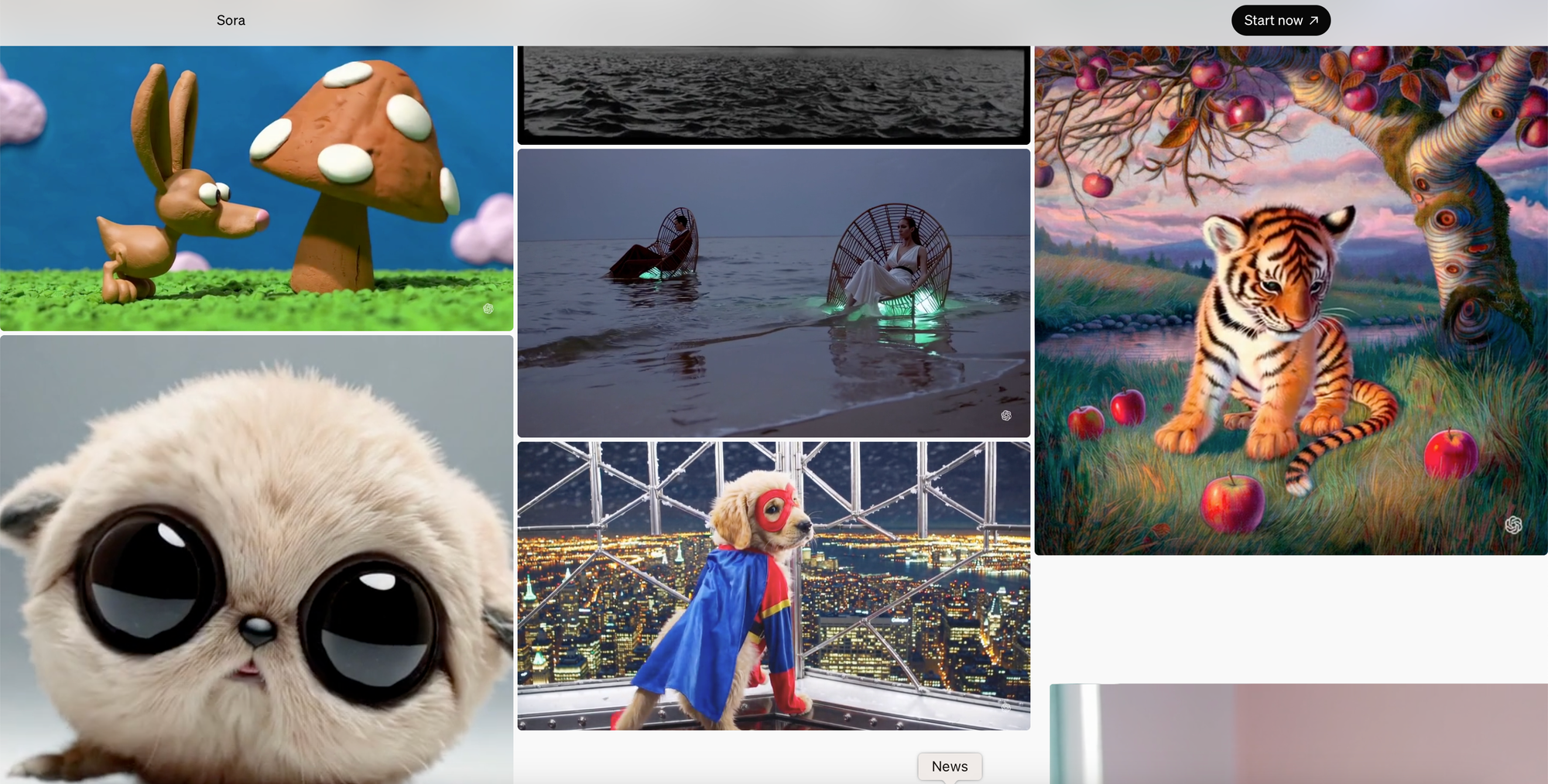
Sora is an AI model designed to generate videos from text. You describe a scene in natural language, and Sora produces a 10–20 second video which you can download onto your own device.
It can produce a wide range of visual outputs, including:
- realistic or cinematic footage
- stylized or animated looks
- concept art brought into motion
Sora benefits a wide range of creators. Marketers can use it to mock up product shots, educators to illustrate concepts, filmmakers to pre-visualize scenes, designers to test looks, and social creators to experiment with short-form content before production. Its versatility makes it useful across many workflows, but its outputs almost always benefit from post-production polishing.
Is Sora Free?
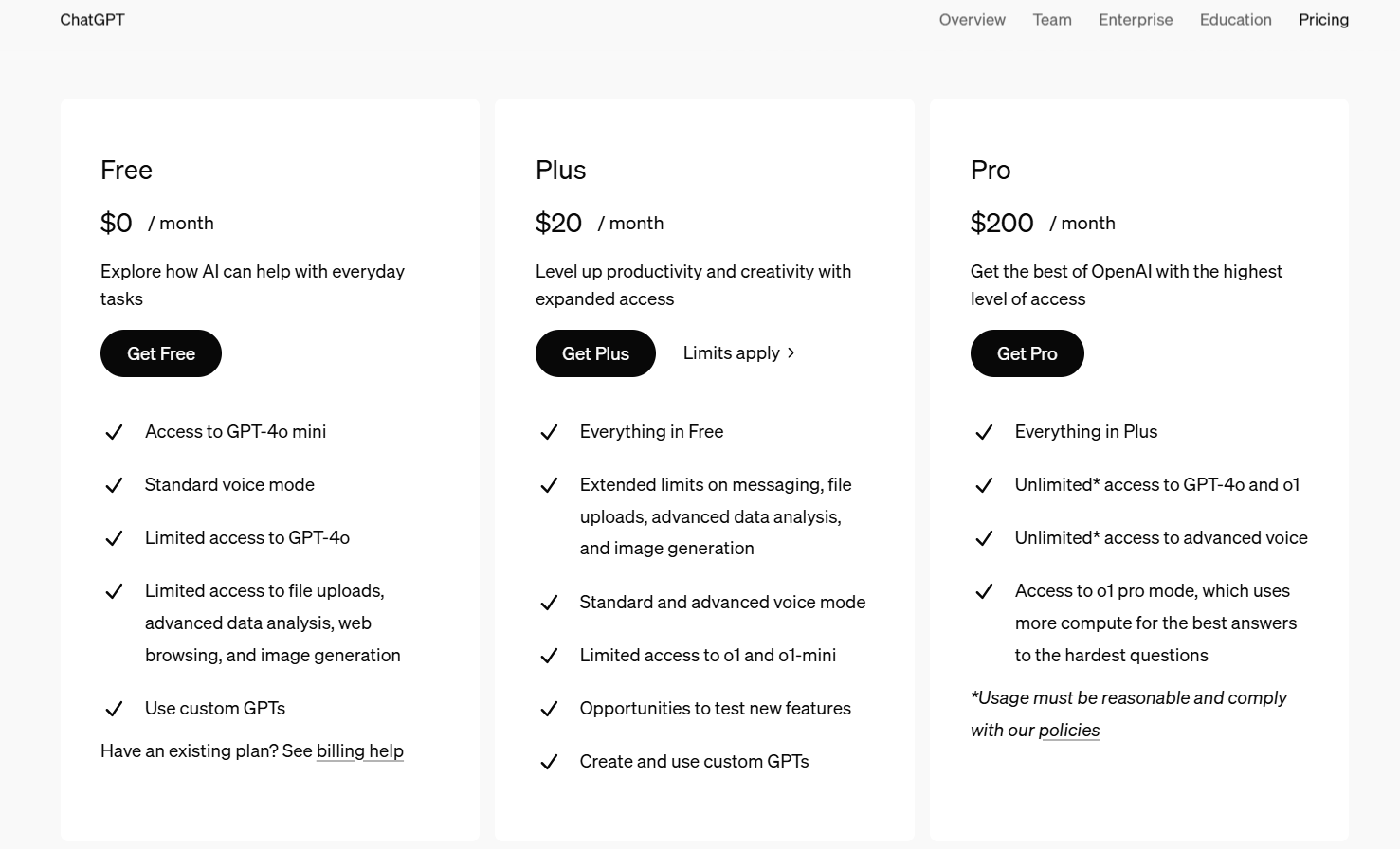
Sora is not free. Unless you have an official OpenAI invite code, access to Sora requires a paid ChatGPT Plus ($20/month) or Pro subscription ($200/month). The tier of your subscription determines video length, resolution, and monthly download limits.
In some cases, OpenAI may grant access to Sora through an invite code. If you’ve received an official invite code, you can enable access without upgrading your subscription. However, these invite codes are limited and typically difficult to obtain, as they’re distributed selectively through OpenAI.
How To Sign Up For Sora
Creators currently have two ways to access Sora: directly through ChatGPT (paid) or via Kapwing’s Sora integration, which offers a free alternative for generating and editing videos. Each option supports a different type of workflow.
1. Access Sora Through a ChatGPT Subscription
The direct way to use Sora is by subscribing to one of OpenAI’s paid ChatGPT plans:
- ChatGPT Plus
- ChatGPT Pro
After subscribing or activating Sora through an invite, log in with your OpenAI account and open the Sora app or web dashboard. Once you accept the Sora terms, you can start generating videos immediately.
2. Access Sora Through Kapwing
Kapwing includes a built-in Sora integration that allows you to generate AI videos directly inside Kai. This makes it possible to try Sora for free by without needing a subscription, which is ideal for evaluating whether it fits your workflow.
Once you’ve generated your video, Kapwing provides an end-to-end editing environment where you can immediately refine the result. You can trim clips, add captions, generate music or sound effects, and combine Sora outputs with other footage—all within the same workspace.
With Kapwing, you can:
- Try Sora for free
- Edit it instantly by trimming clips, adding captions, or stitching footage
- Generate songs, sound effects, or images with other high-quality models
How To Use The Sora AI Video Generator for Free
If you’re a creator who wants to use Sora without juggling multiple apps, the most streamlined option is to access it through Kapwing. This lets you generate Sora videos and edit them in the same workspace.
Here’s how:
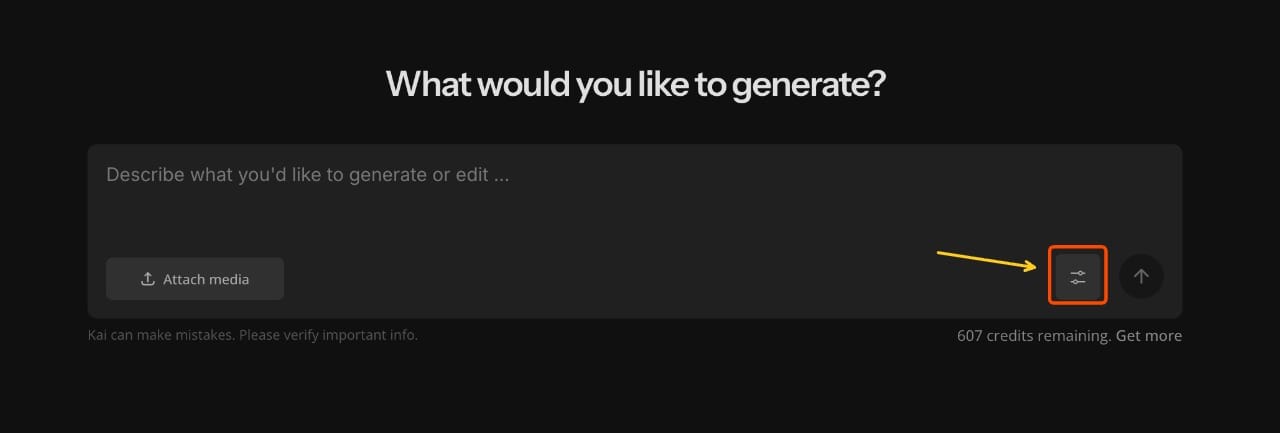
1. Open Kai and Select the Sora Model
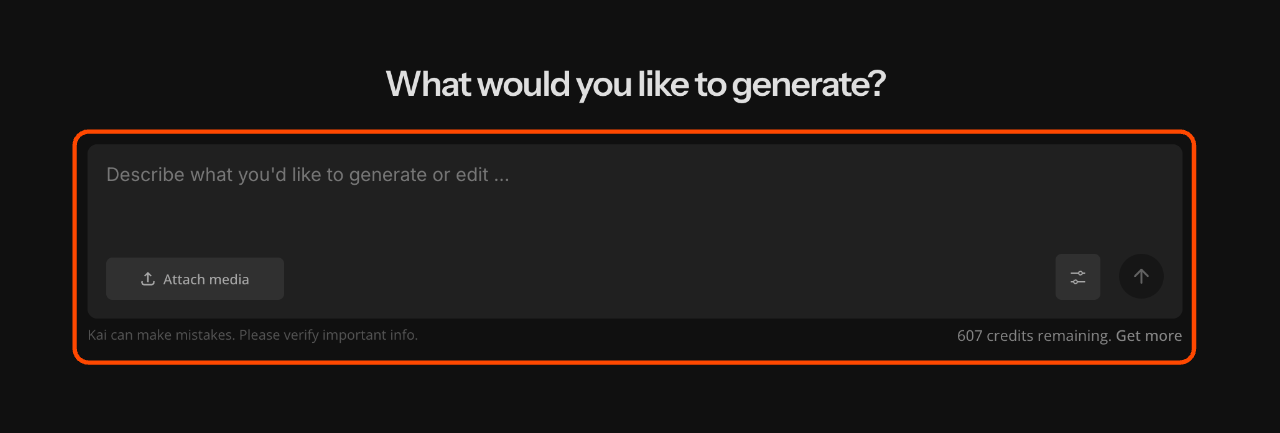
Open Kai and wait for the main screen to load. In the bottom-right corner, tap the settings button.
This will open a menu that lets you choose which model you want to use.
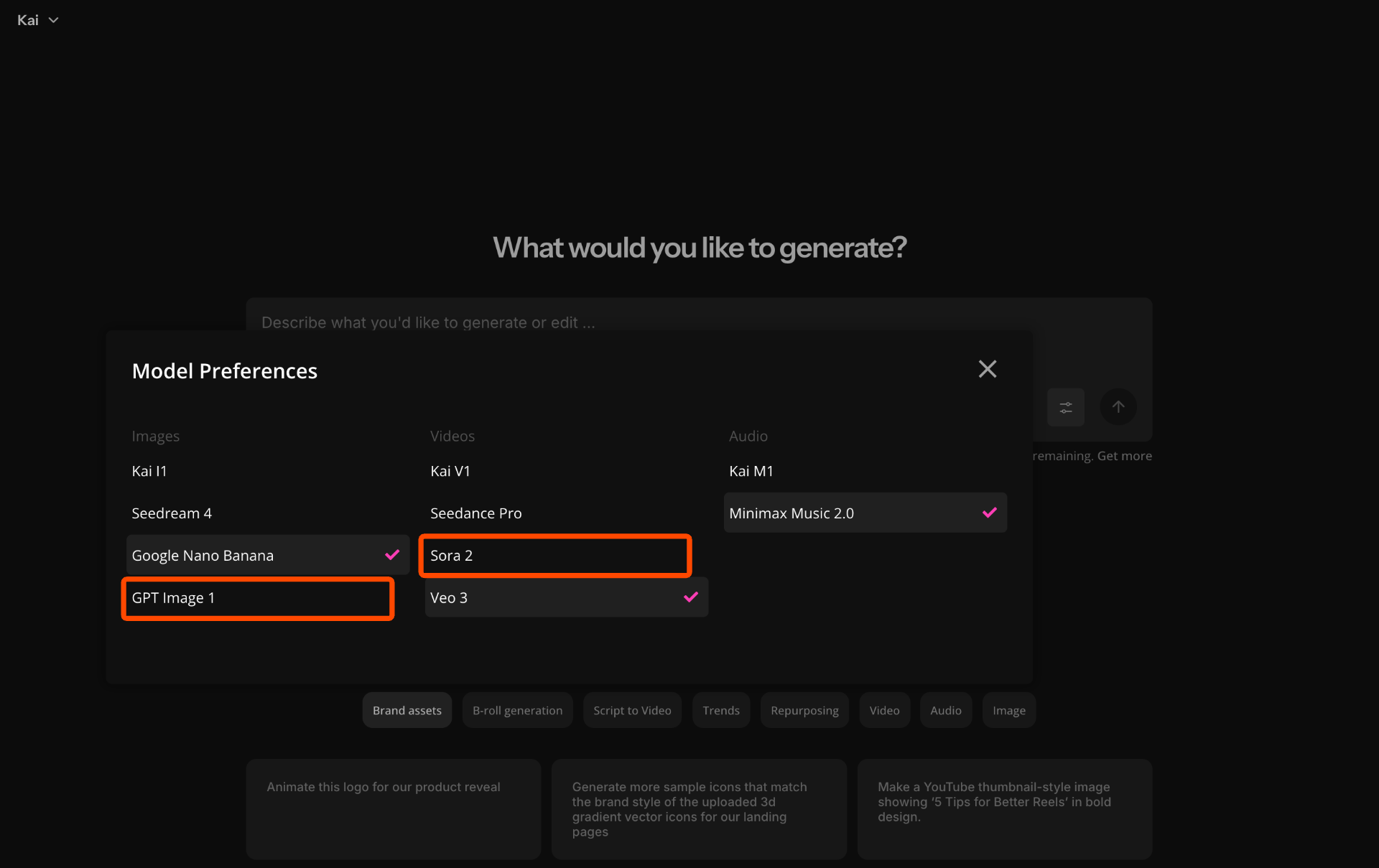
If you plan to generate an image, select GPT Image 1. If you want to generate a video, select Sora 2.
Once you make your selection, Kai will update your workspace so you can start creating with the correct model.
2. Write Your Prompt
The next step is to write your prompt and enter it into the prompt box.
Your Sora prompt directly determines how accurate and useful your final video will be, so keep it clear, specific, and visually focused.
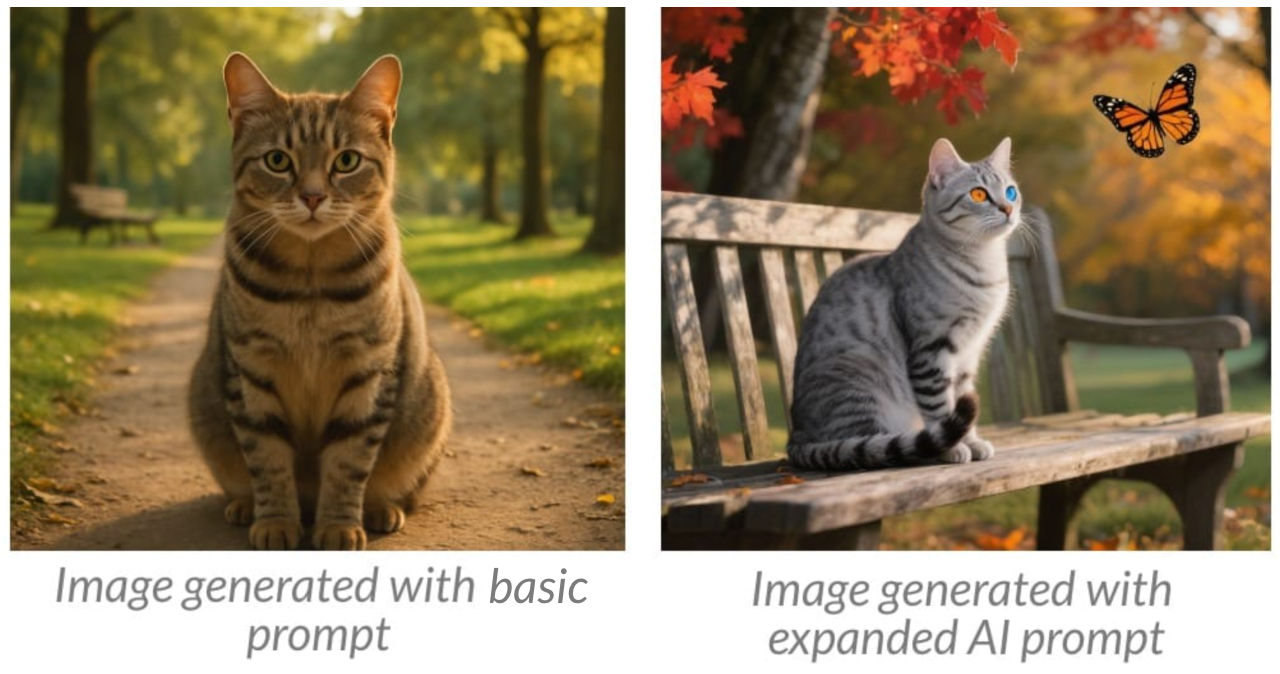
A strong prompt describes the subject, setting, movement, and overall style you want. Sora responds well to detailed direction such as lighting (“golden-hour light”) and style (realistic, animated, cinematic). When writing video prompts, make sure to define camera behavior (“slow tracking shot”) and motion (“a cyclist riding past the camera on a rainy street”).
For example, an inefficient Sora prompt would be something like “a cat in a park”. This is too vague, and Sora may struggle to interpret style, motion, lighting, or perspective.
On the other hand, a prompt like “grey tabby cat sitting on a park bench in the Autumn watching a monarch butterfly” includes much more detail, leading to more predictable results.
This is also the place to define aspect ratio and duration, since they affect how the scene is composed. Make sure to define them in your prompt (“vertical 9:16 clip,” “10-second scene,” “wide 16:9 frame”).
If your output isn’t what you envisioned, adjust one detail at a time. Iterating your prompt is the fastest way to dial in consistent, high-quality results.
3. (Optional) Add a Reference Image
If you want Sora to follow a specific look, maintain character consistency, or match a particular product or style, you can attach a reference image before generating.
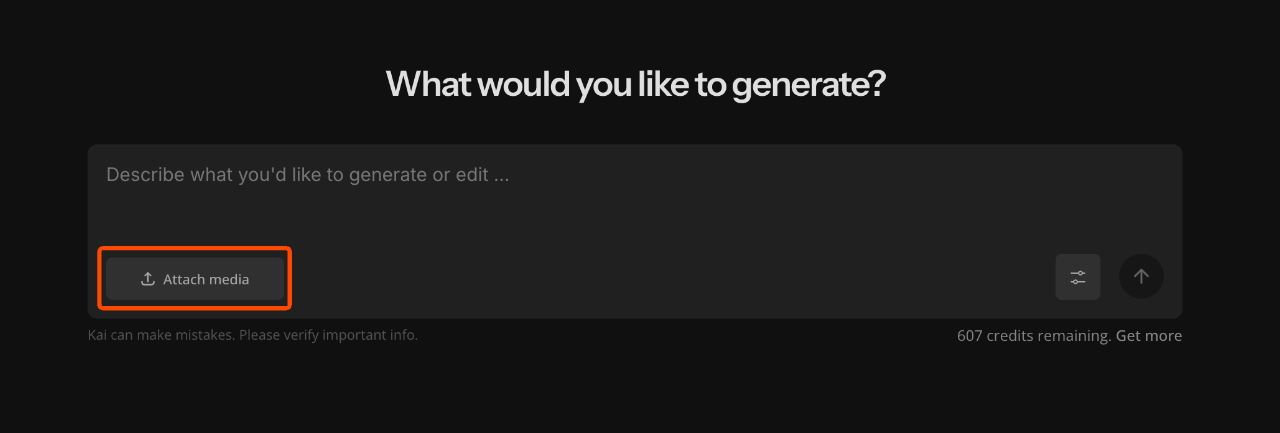
To attach a reference image, click the Attach Media button in the bottom-left corner of the interface and upload your file. Once uploaded, Sora will use that image as a visual guide.
High-quality images with clean lighting and a clear subject produce the best results. Avoid references with busy backgrounds, unusual angles, or lighting that contradicts your scene. In some cases, using a reference image can actually mislead Sora. For example, if your reference is shot in harsh studio light but your prompt describes a cloudy outdoor environment.
If you want a direct visual match, you can animate the image using Image-to-Video, which turns your reference image into the first frame. You can do this by beginning your prompt with a phrase like “Animate this image” or “Use this image as the starting frame” before describing the scene you want Sora to create.
You can animate your image into a video.
4. Generate and Iterate
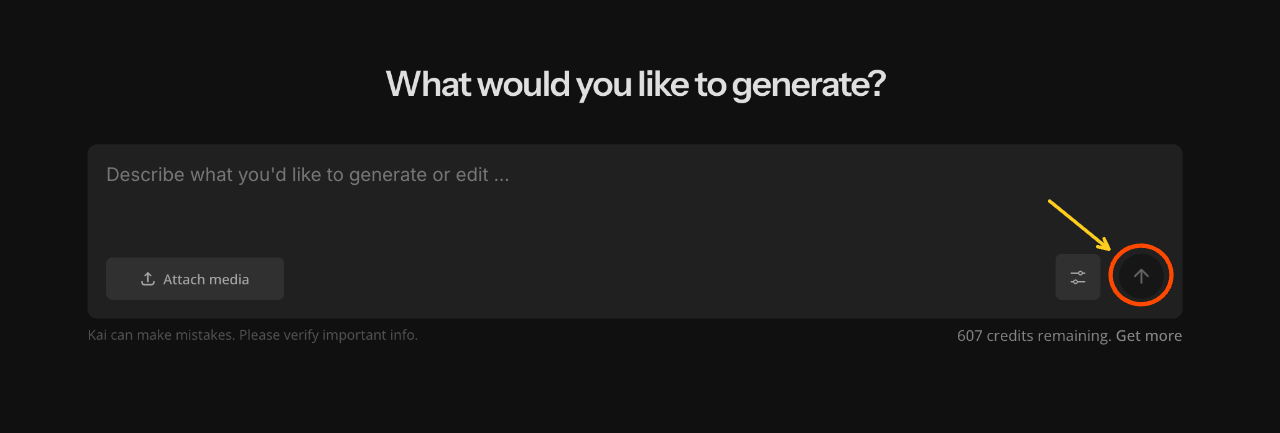
Once your prompt and settings are ready, click the Generate button to create your first Sora video.
The result will appear directly in the chat, where you can preview the clip and decide what to adjust next.
Don't worry if you aren't happy with the output. The initial output is rarely the final version. Iteration is a core part of working with the Sora AI video generator.
Small refinements to your prompt can lead to significantly different results. It’s usually best to modify one detail at a time so you can clearly see what changed in the next output.
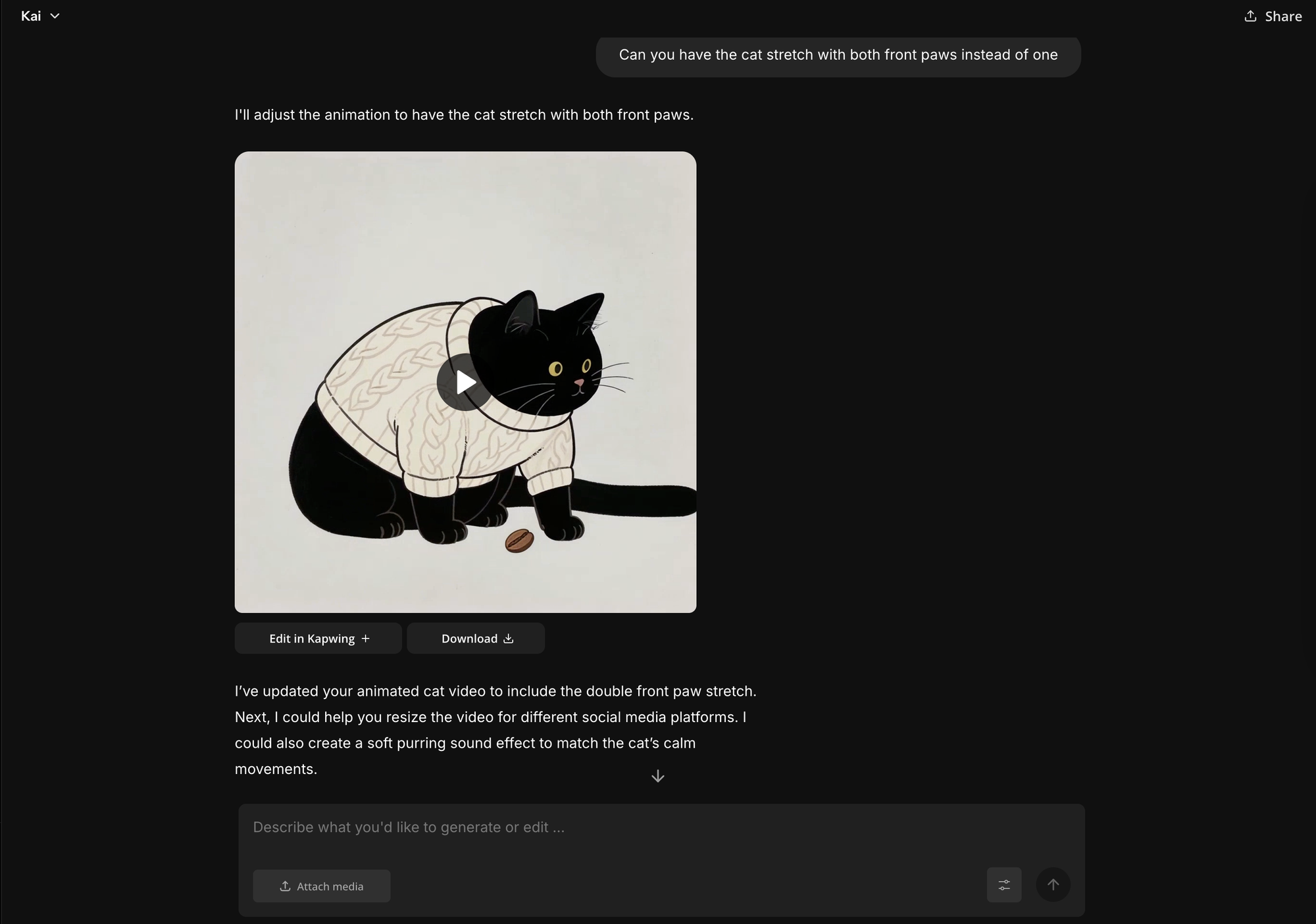
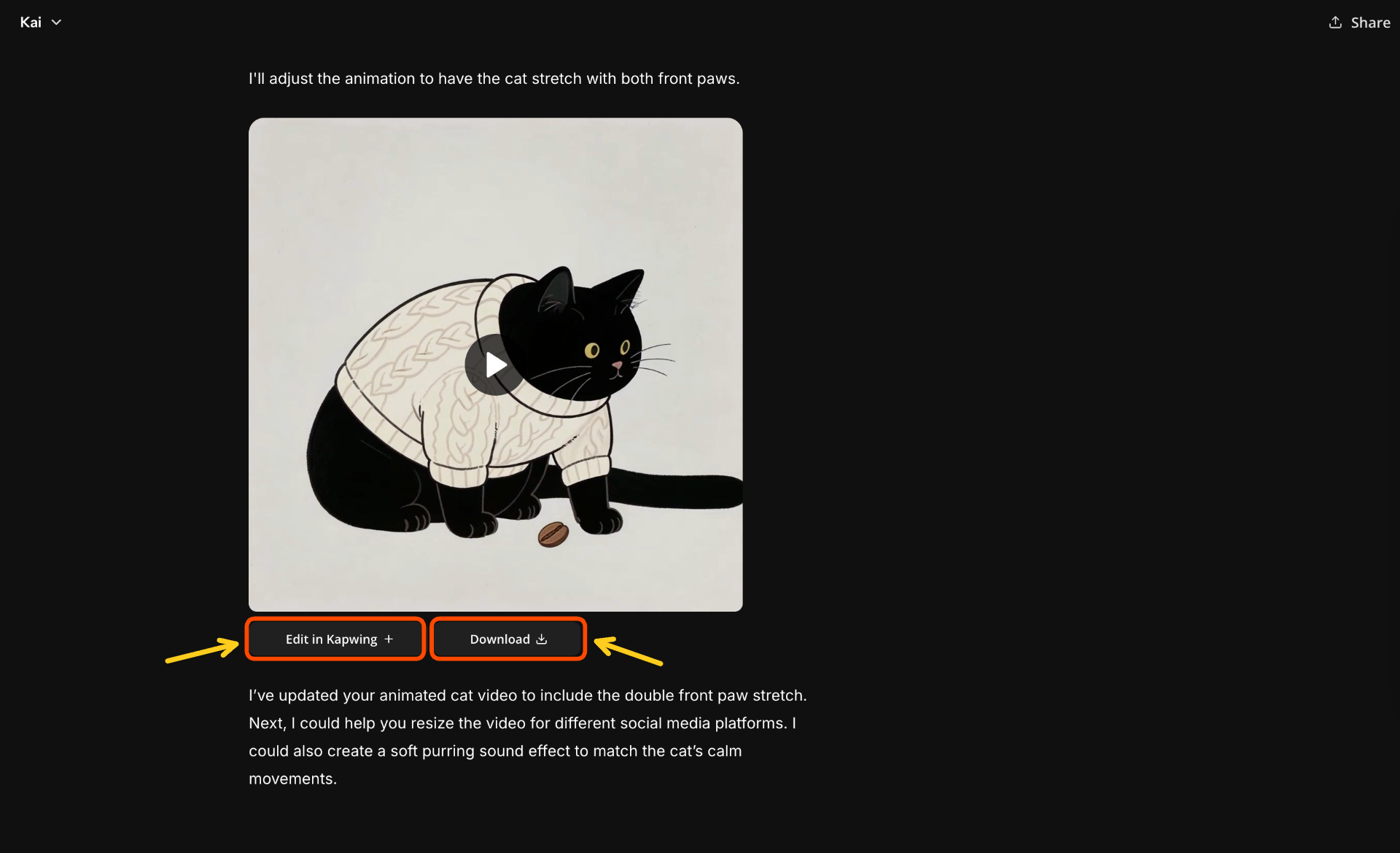
5. Download or Edit in Studio
After you’re satisfied with your Sora output, you can either download the video directly or continue edit it inside the Studio.
Downloading is the fastest option if you already know how you want to use the clip or plan to edit it in another tool.
If you want to add captions, transitions, overlays, or stitch multiple Sora clips, opening the video in Kapwing gives you more control. Editing in Studio becomes especially useful since Sora outputs are silent and often benefit from added music or voiceovers.
Best Sora Prompts
If you’re looking for inspiration or want to see what strong Sora prompts look like in practice, this section highlights some of the best prompt examples for AI video generation.
These sample Sora prompts cover different styles and use cases, giving you a clear idea of how detailed prompts translate into high-quality AI-generated video.
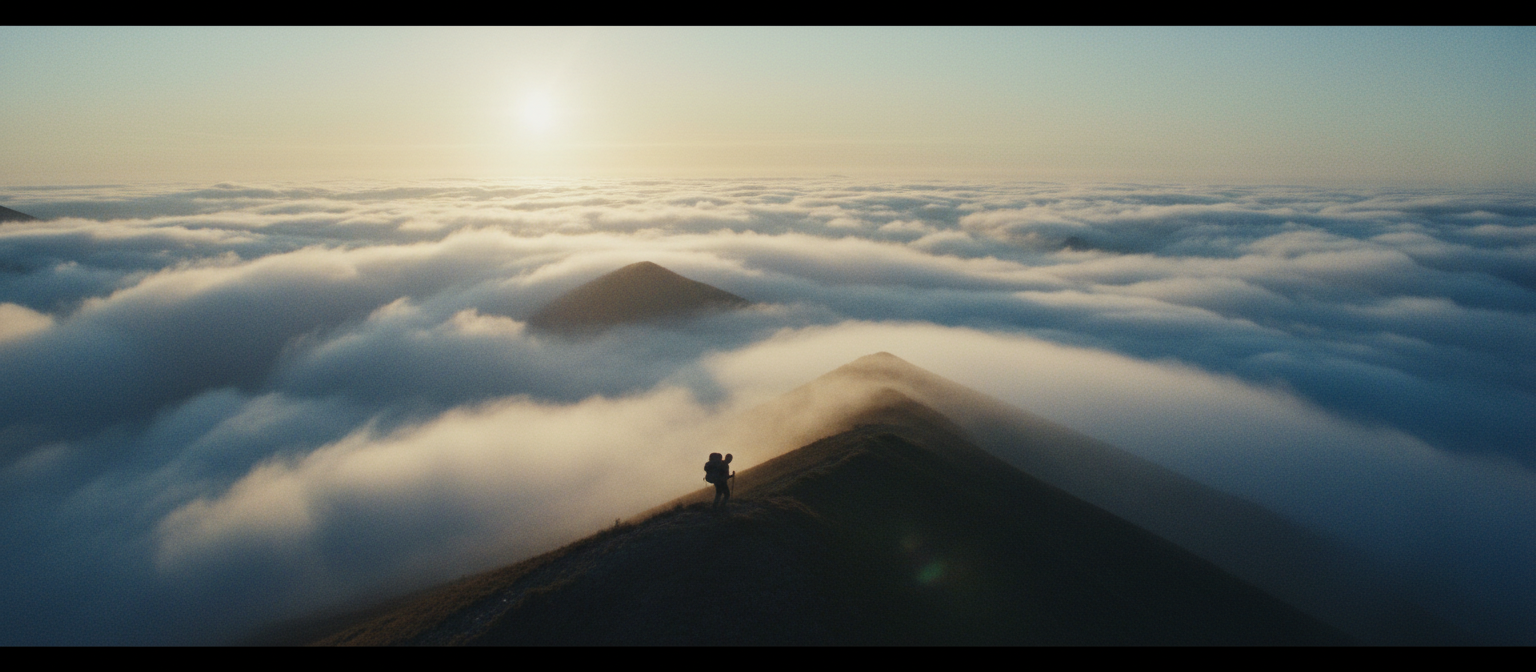
Cinematic Prompt
Wide-angle cinematic shot of a lone traveler walking along a fog-covered mountain ridge at sunrise, soft golden light breaking with a subtle 70mm film grain.
Animated Prompt
Studio Ghibli–inspired animation of a girl riding a bicycle through a vibrant sunflower field on a breezy afternoon, pastel hand-painted textures, gentle motion, and warm diffused sunlight.
This Sora clip brings the animated sunflower field prompt to life with soft motion and a hand-painted feel.
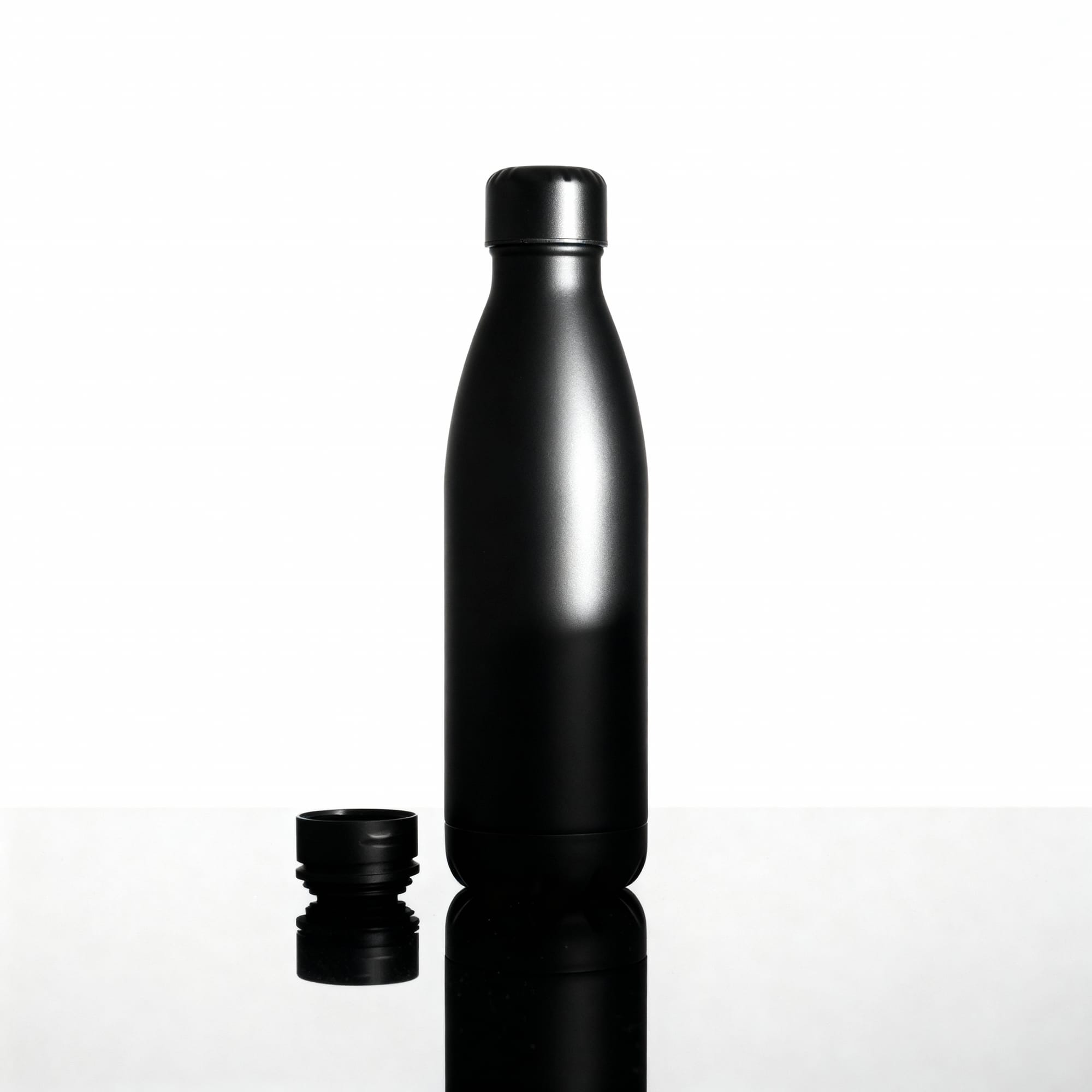
Product Shot Prompt
Close-up shot of a matte-black stainless steel water bottle on a glossy reflective tabletop, dramatic studio lighting with crisp highlights, soft shadows, and a minimal white background.
Nature Macro Prompt
Macro close-up of raindrops hitting a bright green leaf in slow motion, shallow depth of field, natural soft lighting, and highly detailed leaf texture.

Character Moment Prompt
Young boy reading beside a crackling fireplace in a cozy wooden cabin, warm orange glow illuminating his face, soft shadows flickering across the room, captured with gentle handheld camera movement.
Character-driven scenes can capture mood and atmosphere with a clear prompt.
Food Prompt
Ultra-close-up shot of a chef drizzling honey over a stack of fluffy pancakes, warm natural morning light, shallow depth of field, steam rising softly, and glossy textures on the syrup and berries.
Turn a simple food prompt into a Sora clip like this honey-drizzled pancake stack.
Is Sora free?
Sora is included with paid ChatGPT Plus and Pro plans, which also offer a range of additional features alongside the video generator.
Before subscribing, consider whether the plan aligns with your broader AI needs. You can always explore Sora with a Plus plan before deciding to upgrade to Pro.
The cost differential is significant. ChatGPT Plus is only $20 a month vs Pro, which is $200 a month.
What are the Sora account limitations?
Sora operates on a credit system. Each subscription tier comes with a monthly usage allowance — for example, the ChatGPT Plus plan ($20 per month) includes up to 50 videos each month.
The ChatGPT Plus version can generate up to two videos at a time, with a maximum length of 10 seconds per clip and 720p.
The ChatGPT Pro version can generate up to four videos at a time, with a maximum length of 20 seconds per clip and 1080p. When generating your video, you may notice some options are grayed out. These are ChatGPT Pro features.
How long can Sora videos be?
Video duration depends on your access level. Standard access typically supports clips around 10 seconds, while higher tiers may allow up to 20 seconds.
Can Sora generate audio?
No. Sora currently generates video only. Audio, music, and voiceovers must be added in post-production.





