Trim, cut, and shorten videos online.
Adjust the start and end of clips for free.

Trim any video in seconds
Cut unwanted footage from any part of videos. Free in your browser.
Trim videos to the exact length you need
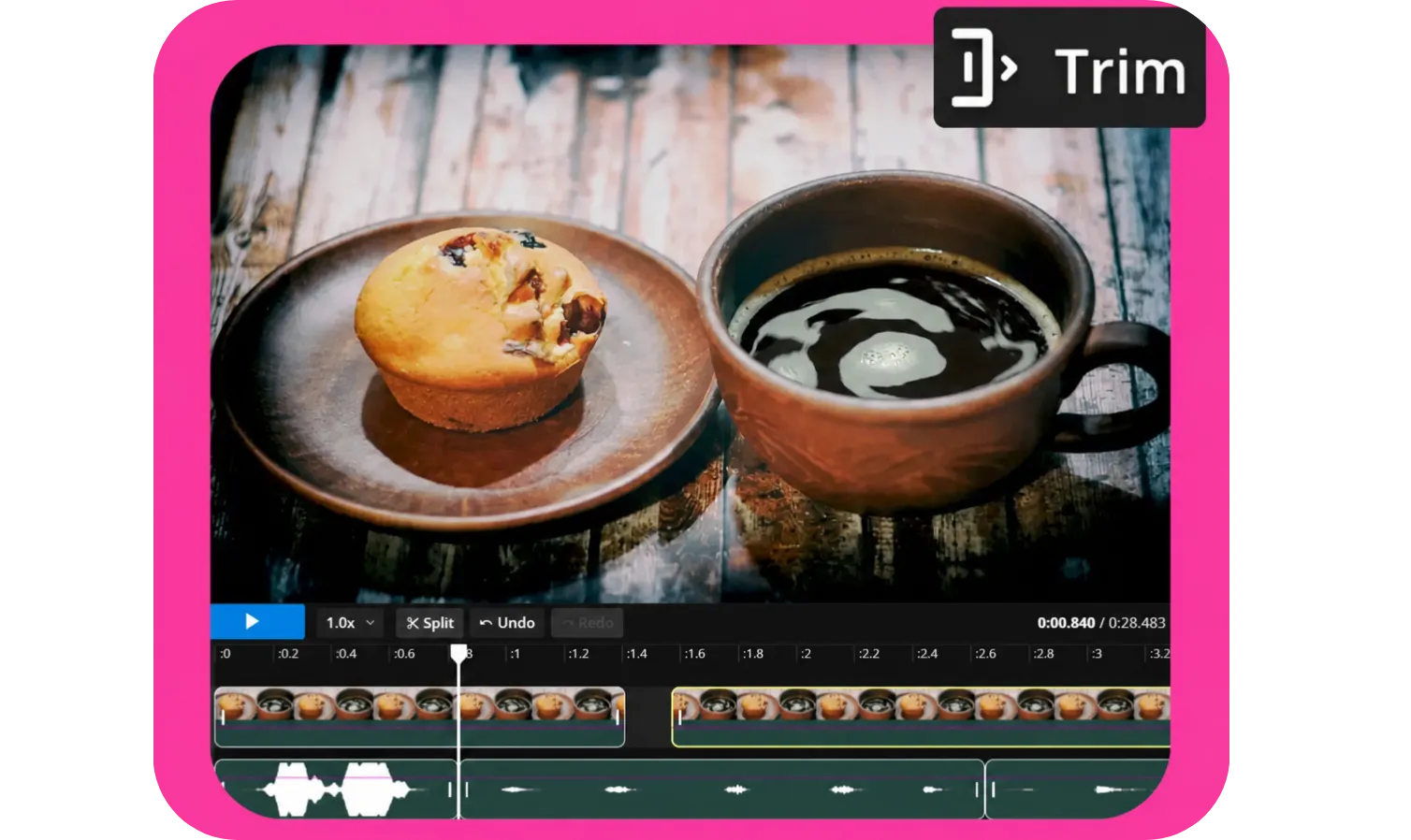
Remove unwanted footage from the beginning, middle, or end of any video with Kapwing’s online video trimmer. Drag the ends of a clip to quickly shorten MP4 or MOV videos, or split the timeline to remove mistakes, pauses, and sections you don’t want to keep.
For more precise video trimming, move the playhead to an exact moment, zoom into the timeline, and use audio waveforms to find the right place to make a cut. Preview your trimmed video as you edit, then continue editing with the Kapwing Video Editor or export your finished clip.
Use the video trimmer to shorten recordings, cut long videos into shareable clips, remove dead space, or meet a specific video length for social media, presentations, ads, and other platforms. Everything works online in your browser, no downloads required.
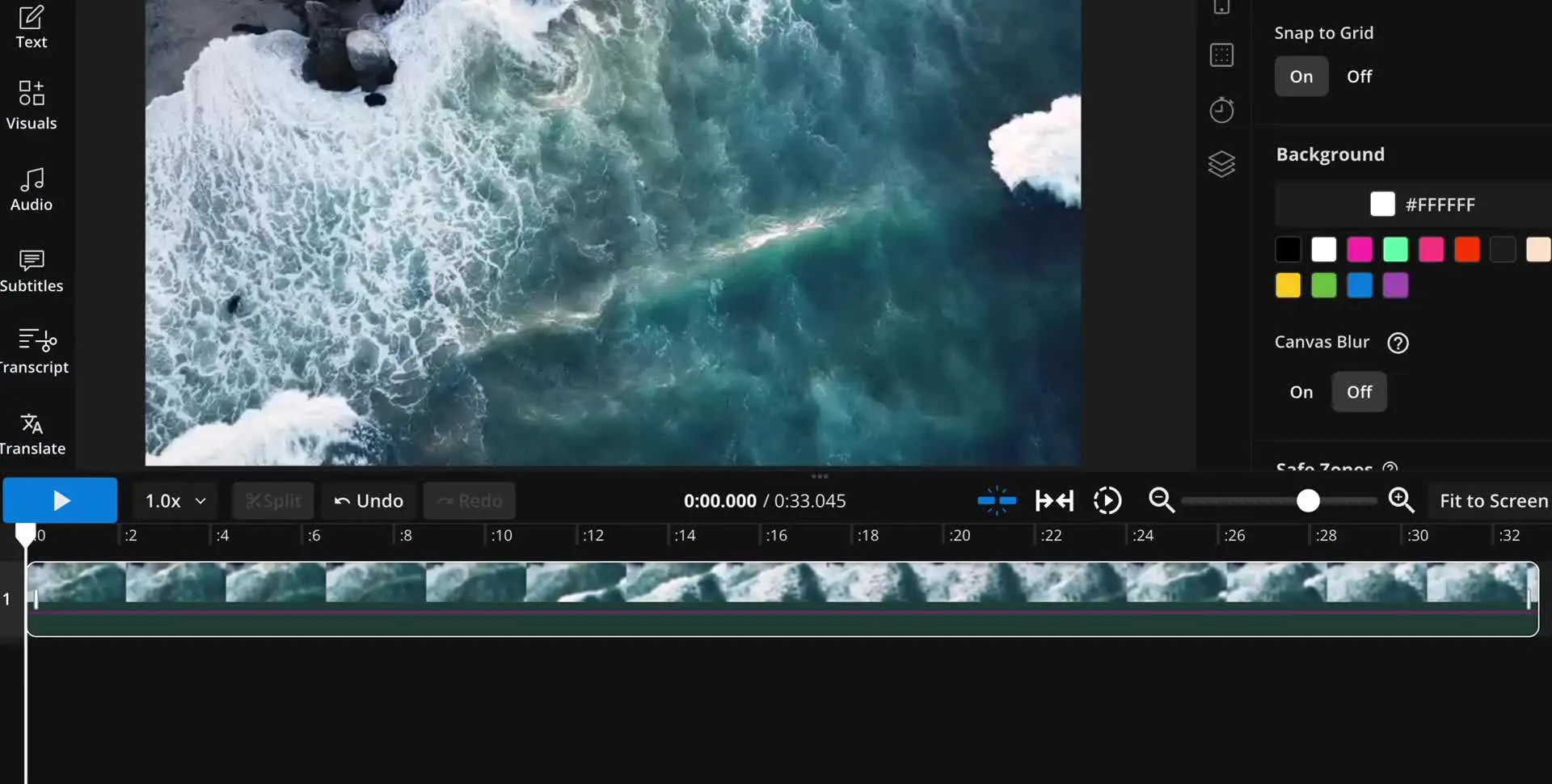
How to trim videos in 3 steps
Upload, trim, and export directly in your browser
Upload
MP4, MOV, or other video types to a new project in the Kapwing Studio


Trim
clips by dragging the ends in the timeline
Export
as MP4 or MOV in up to 4K, or keep editing in the Studio
Shorten videos with precise controls
Remove the start, middle, or end of any video. Export or keep editing for free.
Remove unwanted footage from videos
Trim the beginning or end of a video by dragging the edges of the clip directly on the timeline. For more precise video trimming, use the playhead and audio waveform to find the exact moment you want your video to start or end. This makes it easy to remove dead space, countdowns, awkward endings, or extra footage from MP4, MOV, MKV, and other video files.
To cut something from the middle, place the playhead around the footage you want to remove and use the Video Splitter to separate it from the rest of the video. Delete mistakes, pauses, interruptions, or entire scenes, then rearrange the remaining clips as needed.
Turn videos into viral-ready clips
Trim long videos down to the moments most likely to grab attention and keep viewers watching. Cut slow intros, pauses, tangents, and setup from podcasts, interviews, webinars, tutorials, and other long-form content to get to the hook faster and keep each clip focused on one idea, story, or takeaway.
Create multiple short clips from the same recording for TikTok, Instagram Reels, and YouTube Shorts, then tighten each one for the platform and audience. After trimming, you can resize the video for vertical viewing, add captions, and make other edits in Kapwing to turn long-form footage into social-ready clips.
To work directly with YouTube content, use Kapwing's YouTube Video Trimmer to cut and shorten YouTube videos online.
Trim videos with AI
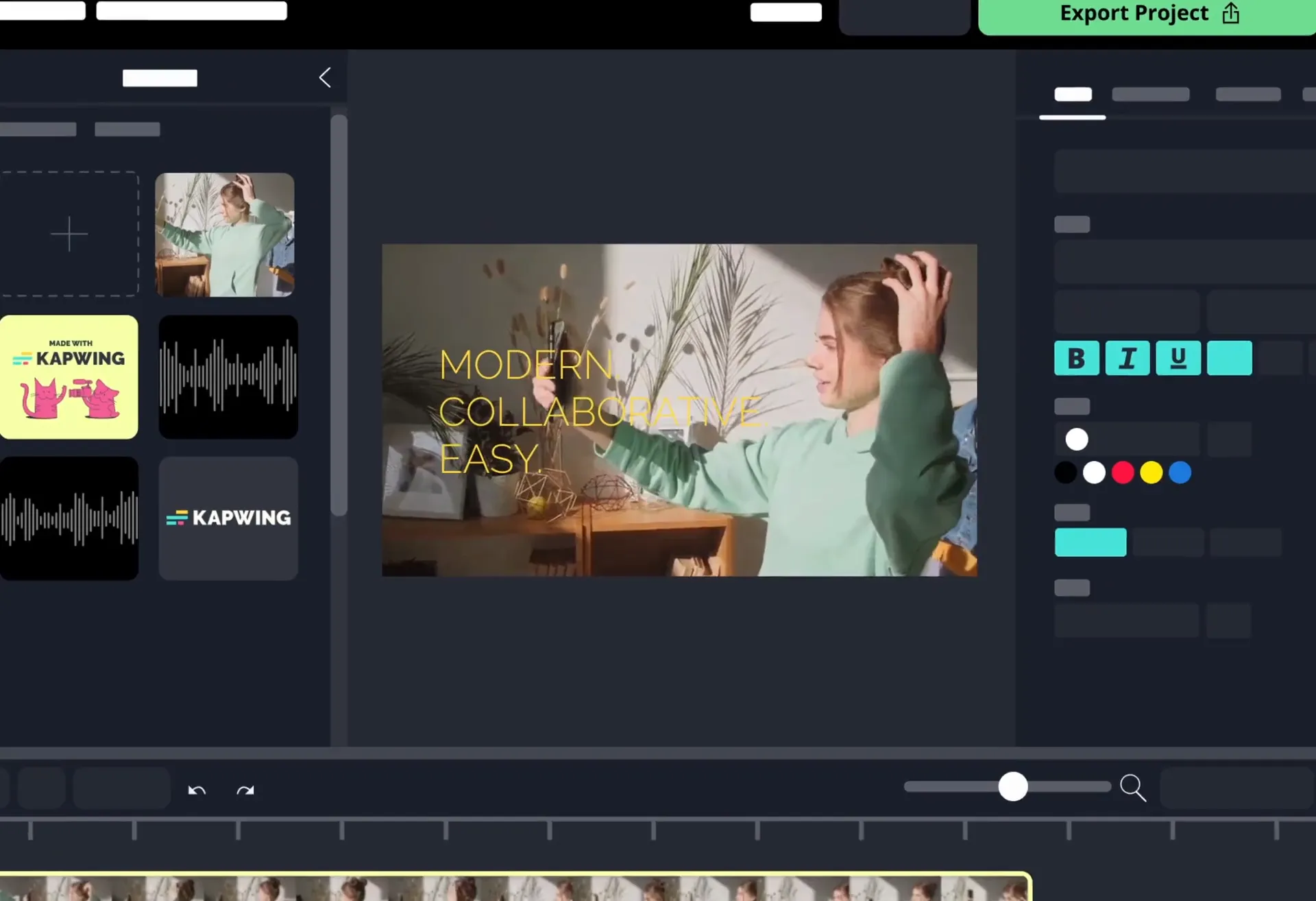
Use Kai, Kapwing’s AI video assistant, to trim and edit videos with a prompt. Ask Kai to shorten an intro, remove pauses or unwanted sections, tighten pacing, or cut longer footage down to the moments you want to keep.
Kai works with your project and timeline, so you can refine edits with follow-up prompts without starting over. Turn long videos into shorter clips, request additional cuts, or adjust the pacing, then review the results and switch to the timeline for manual editing at any point.

Create and repurpose video faster
Creators in every field cut and trim video online with Kapwing


Event Highlights
Event videographers shave hours off their workflow by trimming video online. Two hours of footage can be cut into short highlight videos using Kapwing's AI Clip Maker

Tutorials & Vlogs
Tutorial and vlog creators use our online clip cutter to remove awkward moments, long pauses, and extra fluff, making video editing faster, even if editing on an iPhone

Email Campaigns
Content marketers use our free video trimmer to shorten explainer videos into enticing teasers they can embed in email campaigns

Product Demos & Reviews
Shorten video online to catch the best moments of product demos and reviews, spotlighting key features and benefits, perfect for landing pages and social media posts
.webp)
Facebook & Google Ads
Digital marketers use our online clip cutter to shorten one-minute advertising videos into snappy, in-stream ads that comply with Google Ads and Facebook's length requirements
How to Trim a Video Online
- Step 1Upload video
Upload your video to Kapwing directly from your device or by copying and pasting a URL link. This online video trimmer supports most video formats (MP4, MOV, MKV, and more).
- Step 2Trim video
Click on the video and drag the double-sided arrows to trim it. To remove footage from the middle, place the playhead where you want to make a cut and press “S” to split the video.
- Step 3Edit and export
Make additional edits to your trimmed video, and export when you’re ready. Download a video file or copy your own unique video URL link.
What's different about Kapwing?



Frequently Asked Questions
We have answers to the most common questions that our users ask.
Is Kapwing's Video Trimmer free?
Yes, the Kapwing Video Trimmer is free for all users. The free plan includes some limitations to other editor features and applies a small watermark to the final video.
Is there a watermark on exports?
If you are using a Free plan then all exports — including the Video Trimmer — will contain a watermark. Once you upgrade to a Pro plan the watermark will be completely removed from your creations.
Why should I shorten long videos?
There are several key reasons to shorten online videos:
- Optimize for Mobile: Short, digestible videos are far easier to consume on mobile devices and encourage viewers to watch on the go. 63.38% of global web traffic comes from mobile devices, too, making mobile-viewing experience a top priority.
- Increase Number of Shares: Mobile videos are also shared more frequently, making them perfect for spreading your brand message and growing an audience.
- Enhanced Viewer Retention: Most online video content is now under two minutes long, and shorter videos are more likely to be watched in full, improving the chances that content will be remembered by more viewers for longer.
What factors effect video playback speed?
Video playback speed is affected by a range of factors, but some of the most common are:
- Video Resolution and Quality: Higher-resolution videos require more data to be processed, which slows down playback if your internet connection can’t handle the demand. Lower resolution videos generally load and play more quickly.
- Video Compression: While highly compressed videos have smaller file sizes, they often require more processing power to process. This affects playback speed, especially if a device can’t decode the video fast enough.
- Player or Software Efficiency: A video player or software’s efficiency at processing and rendering video affects playback speed. Optimized players, like Kapwing’s Online Video Editor, can process video more efficiently, which reduces delays and stuttering.
What’s the easiest way to trim a video?
The easiest way to trim a video is to use an online video trimmer. This allows you to avoid purchasing heavy-duty software that takes a lot of time to master, or overloading your device's storage space by downloading and saving tons of content.
Simply upload your video, select the portion you want to cut, and adjust the start and end points. Once you're happy with the selection, download your edited MP4 clip or copy the URL link for easy sharing.
Can you use the Video Trimmer on an iPhone or Android?
Kapwing works across both desktop and mobile devices. To trim a video on an iPhone or Android, start by uploading a video to Kapwing's online browser. Next, touch and drag the front or end of your video to shorten its length in the timeline. You can also press the scissor icon above the marker to make your split for free.
What video files is Kapwing compatible with?
Kapwing's Video Trimmer works with all popular file types for video (MP4, AVI, MOV, etc.). Note that video exports in Kapwing can be MP4, MOV, or WebM, while audio files can be MP3 or AAC. We feel these files represent the best tradeoff between file size and quality.
What is the difference between trimming, cutting, and splitting a video?
Trimming shortens a video by removing footage from the beginning or end, while cutting removes unwanted footage from any point in the video. Splitting divides a video into separate clips at a specific point on the timeline. In Kapwing, you can combine these editing techniques to shorten a video, remove sections, or rearrange clips. To divide a longer video into multiple parts, use Kapwing’s Video Splitter.
How do I combine multiple videos into one?
To combine multiple videos into one, upload all your content to a project in the Kapwing Studio. The videos are stored on the server, allowing you to add each clip to your project, trim it to the desired length, and then add the next clip seamlessly.
Discover Resources
Tips, templates, and deep dives to help you create faster and share with confidence.
View all


Get started with your first video in just a few clicks. Join over 35 million creators who trust Kapwing to create more content in less time.