Convert video to MP4, MP3, MOV, AAC, WebM, GIF and more.
Free to start. No watermark on Pro.
.webp)
Change video file type for free
Convert to 20+ file types in seconds. No installs or extra software.
Convert video to any format online
Convert videos into the format your audience or software expects. Export MP4 for sharing almost anywhere, MOV for professional editing and Apple devices, WebM for websites and web apps, GIF for social posts and chats, or MP3 and AAC when you only need the audio.
Everything happens online in your browser — no software to install or downloads required. Convert videos for free, preserve quality, and keep editing in the Kapwing Studio if you need to make additional changes before exporting.
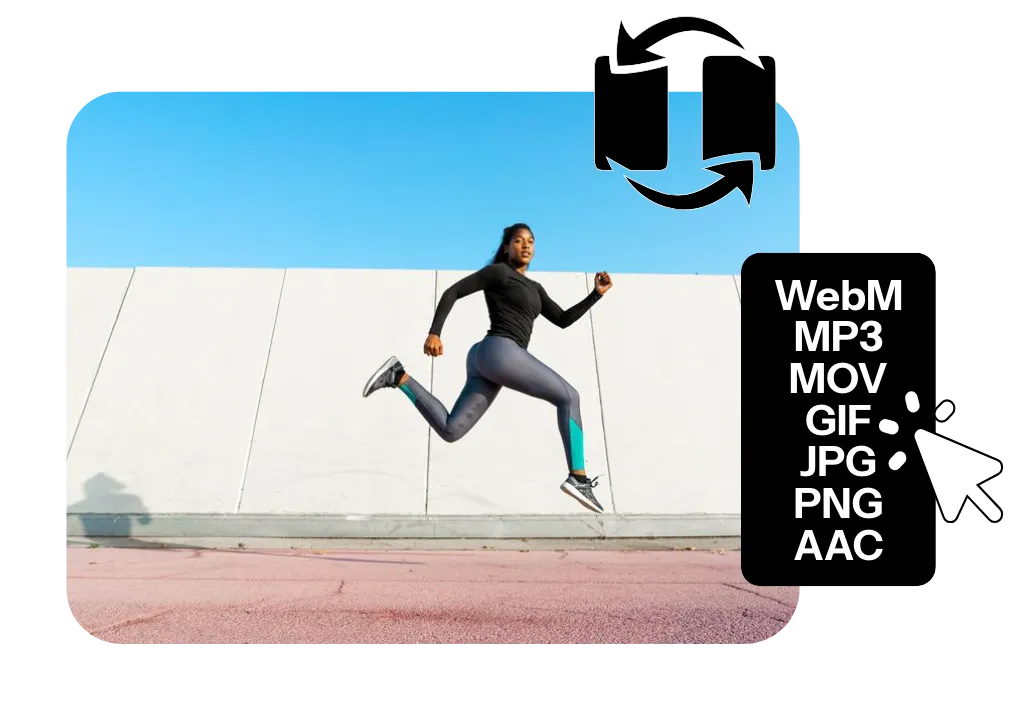
How to convert videos online in 30 seconds
Turn videos into audio files, GIFs, or different video formats.
Upload
video as MP4, MOV, WebM, AVI, and more


Edit
using our free online studio
Convert
to 20+ formats, including MP4, MOV, MP3, GIF, and AVI, using export settings
Convert video, GIFs, audio, and images — then keep editing online
Change video file format for free. Edit and share in an online studio.
Turn videos into audio for podcasts or music
Extract high-quality MP3 audio from any video in seconds. Save interviews as podcast episodes, turn recorded meetings into audio notes, isolate music or sound effects from videos, or create voiceover files for future editing. Convert MP4 to MP3, MOV to MP3, WebM to MP3, and other popular video formats without installing software.
Need to go the other way? Convert MP3 to MP4 by adding a still image, background, waveform, or looping video to create content for YouTube, TikTok, Instagram, and other platforms.

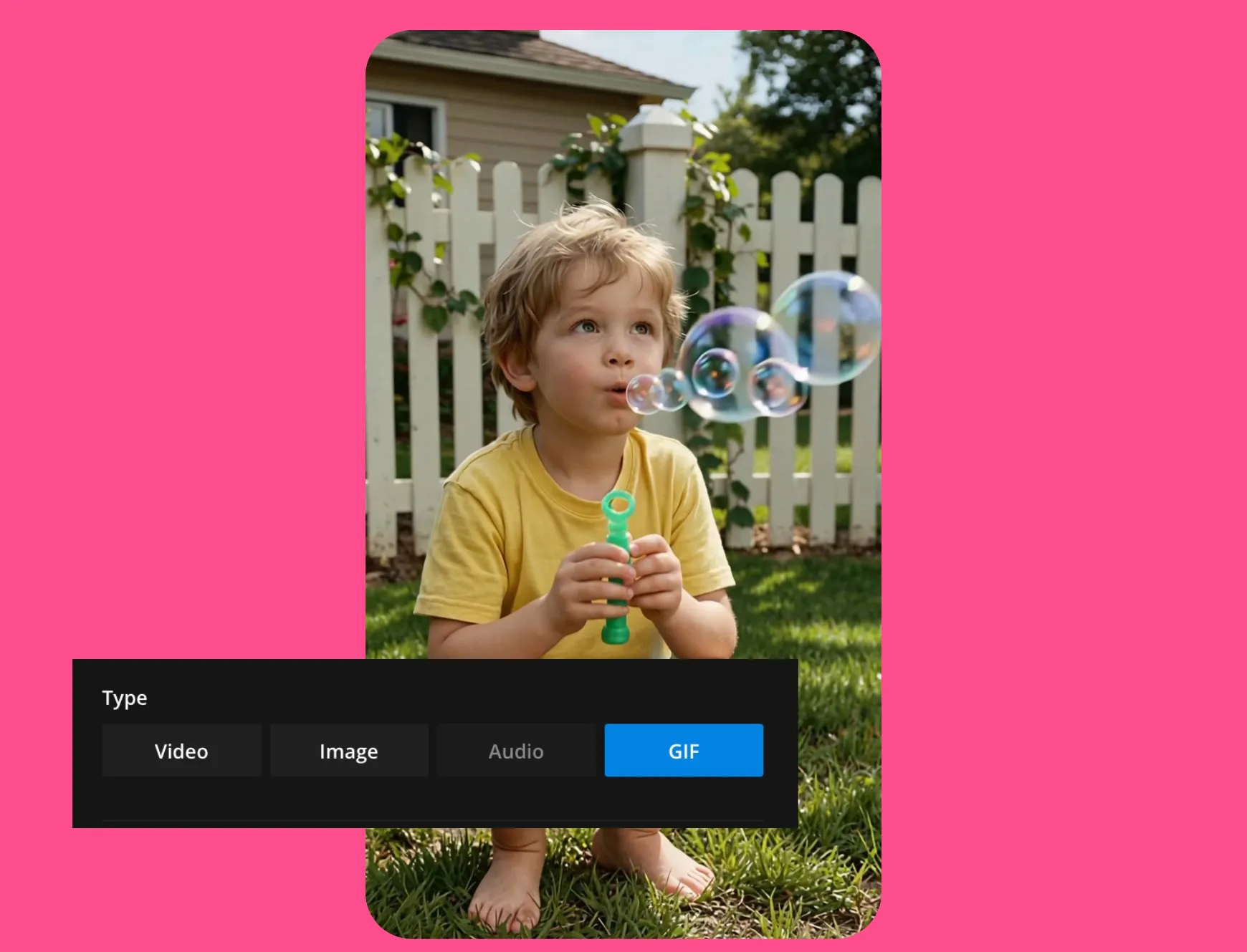
Create GIFs from any video clip
Turn memorable reactions, funny moments, product demos, or highlight clips from your videos into GIFs that are easy to share anywhere. Trim your video to the perfect loop, then export a lightweight GIF for Slack, Discord, Reddit, blogs, email, social media, or messaging apps.
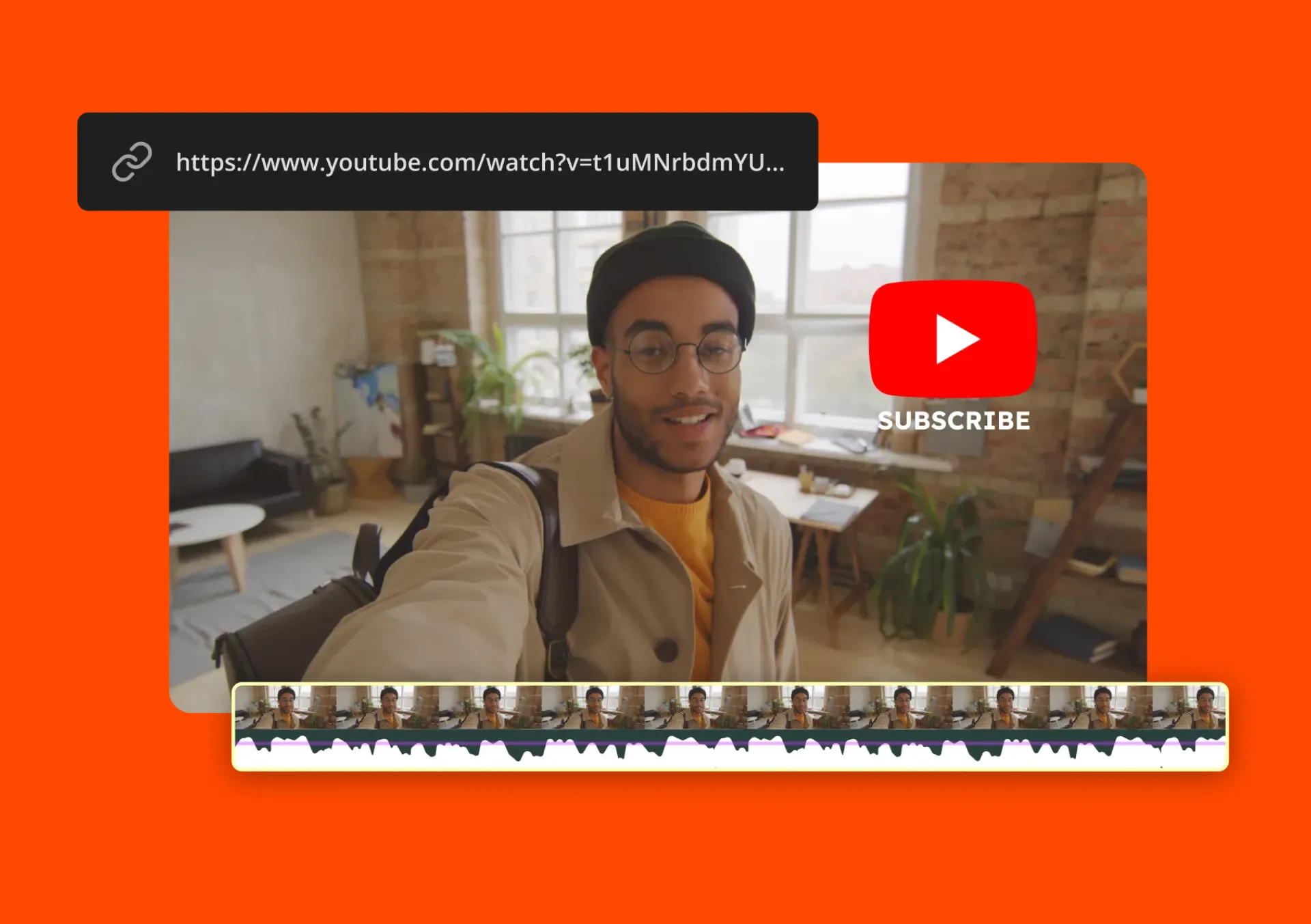
Upload MP4, MOV, WebM, and other popular video formats — or import videos from YouTube and TikTok — to create GIFs directly in your browser.
Edit and convert videos in the same studio
Convert videos between the formats you need in just a few clicks. Turn MOV into MP4 for broader compatibility, convert MP4 to WebM for faster web playback, or switch between popular video file types without sacrificing quality.
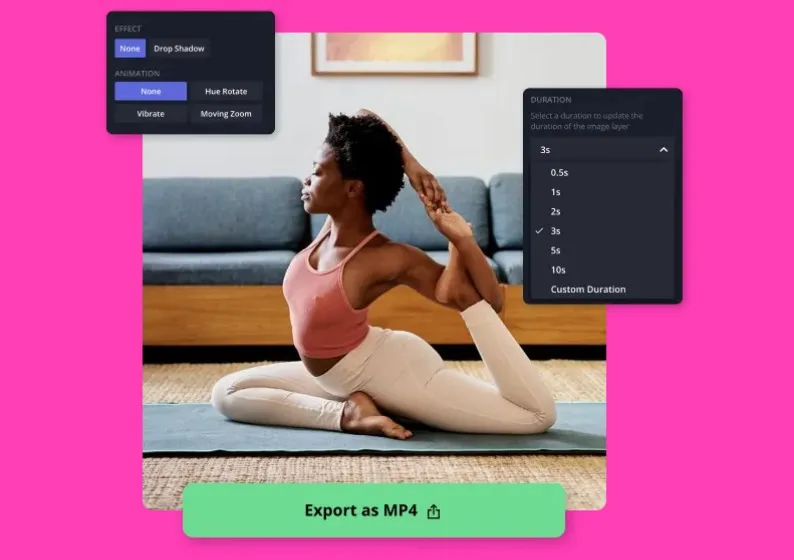
More than a video converter, Kapwing lets you edit as you convert. Trim clips, add subtitles, crop your video, or resize it with presets for TikTok, Instagram, YouTube, and more. You can also choose your export resolution, making it easy to optimize for specific platforms.
Share and collaborate on converted files
Edit converted files with your team in a shared workspace, leave comments, and collaborate in real time, all from the same project. Whether you're updating a client deliverable or refining content with teammates, everyone stays in sync.
When it's ready, share your work however you need. Download your converted video, send a shareable link for instant feedback, or publish directly to platforms like TikTok and YouTube.
Kapwing by the numbers
Built for creators, trusted by millions
For YouTubers, podcasters, marketers, and everyone in between
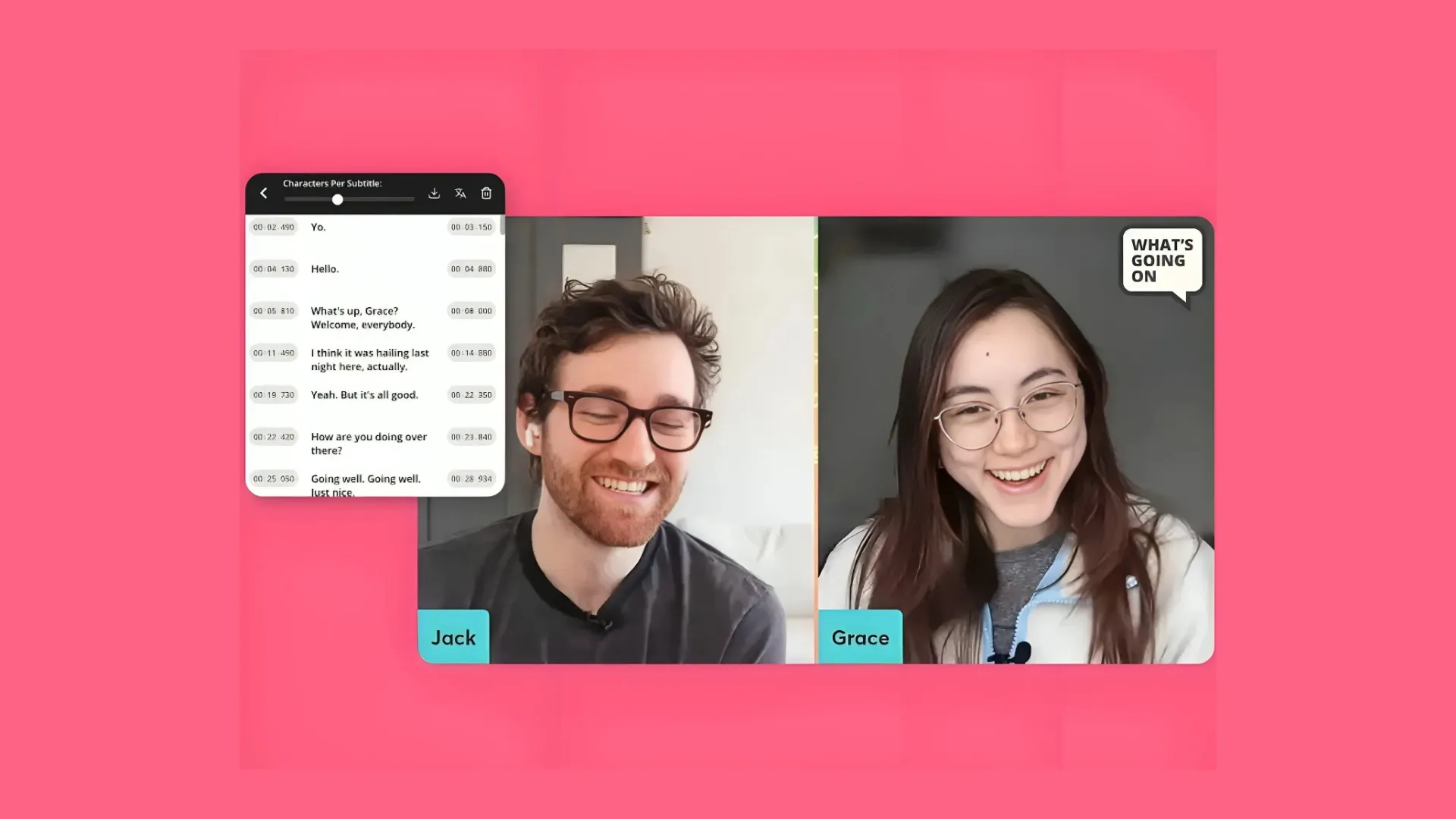
Podcasters
Export recorded MP4 interviews and episodes to MP3 for Spotify, Apple Podcasts, and RSS feeds
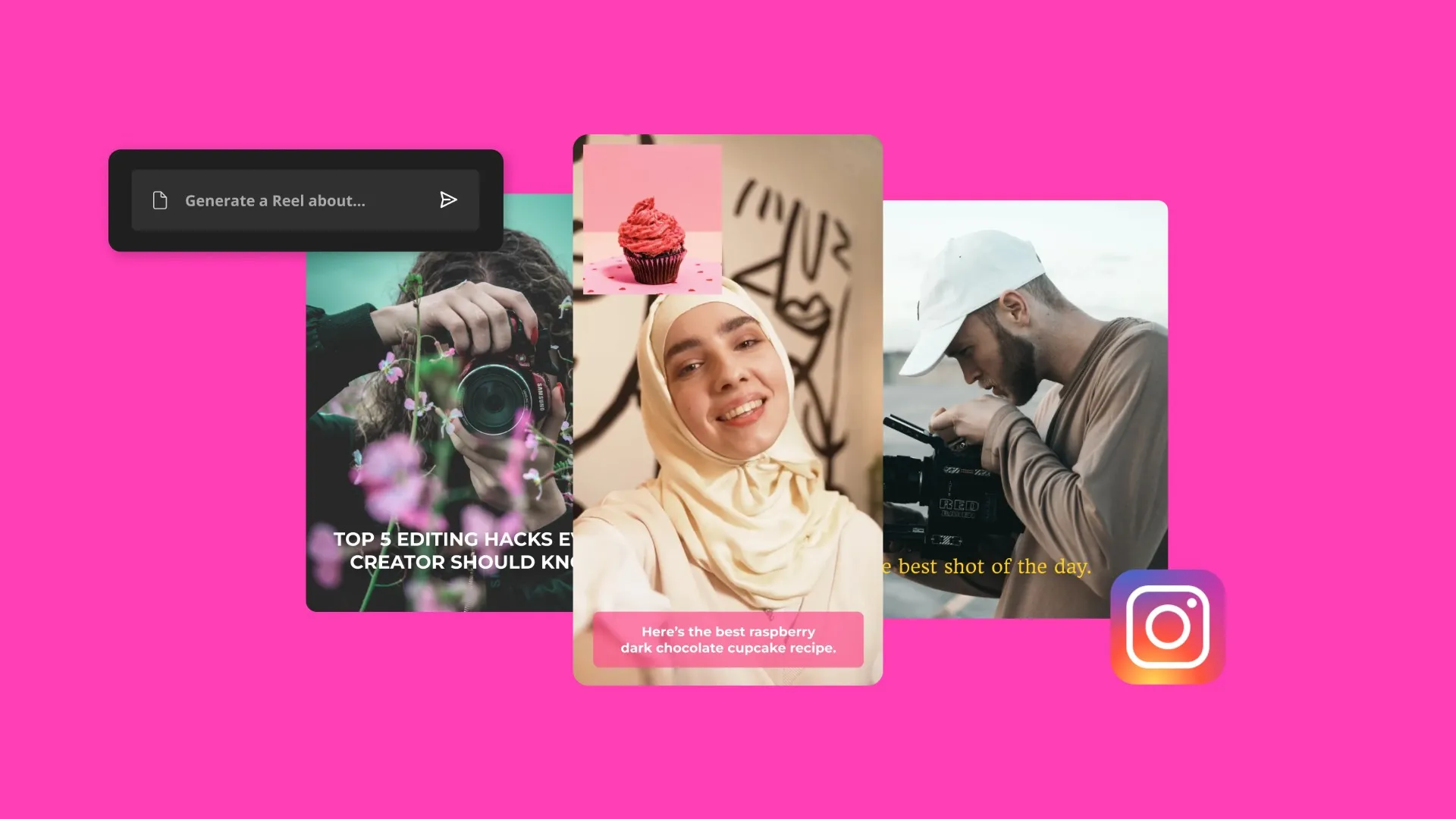
Social Media Managers
Convert long-form video content into GIF clips for Twitter and Instagram stories, or WebM for web embeds
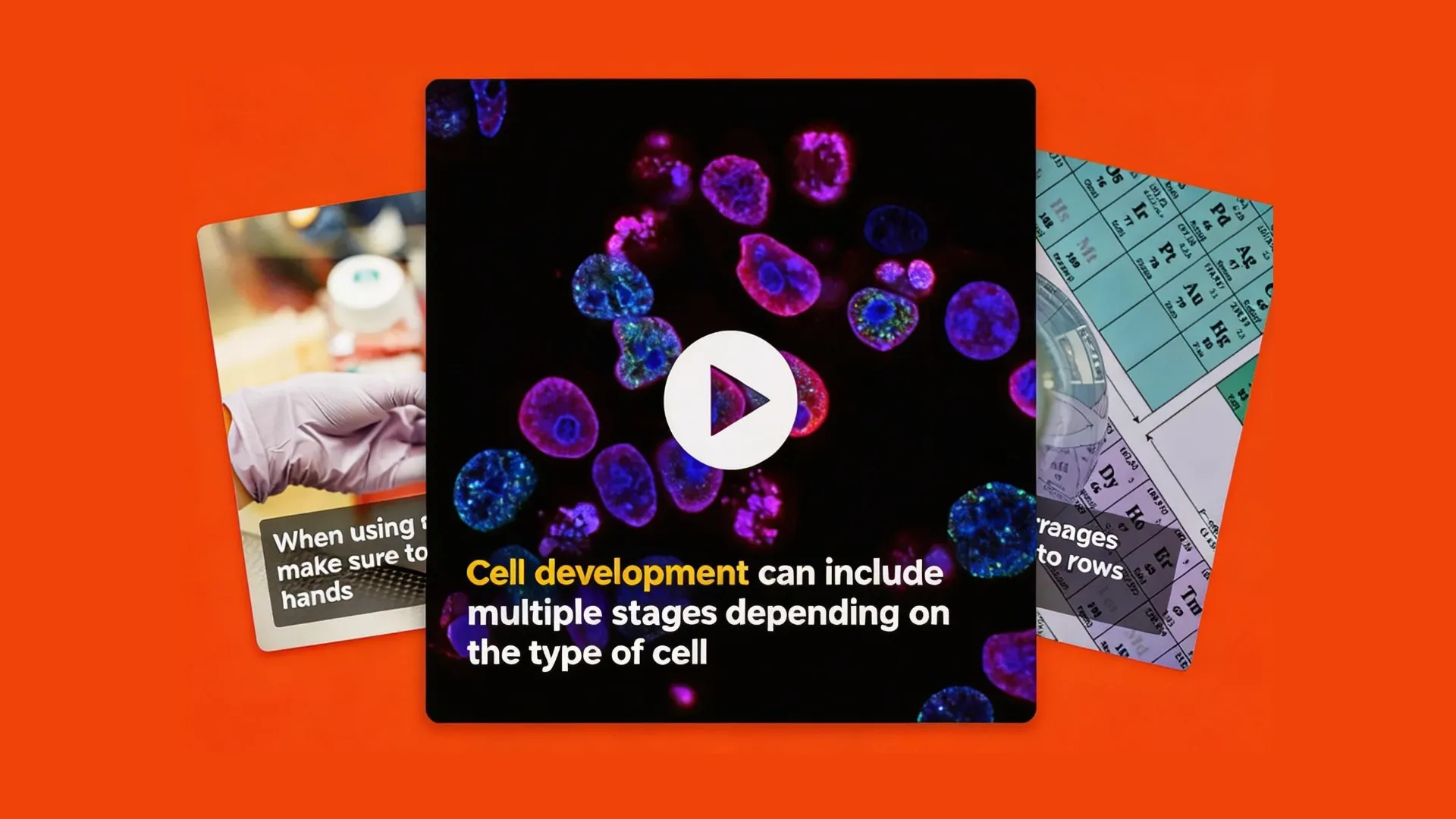
Educators
Convert MOV or MKV lecture recordings to MP4 for universal LMS compatibility — Google Classroom, Canvas, Blackboard

Customer Support Teams
Export screen-recorded MP4s as animated GIFs for help docs, or as MP3 for audio-only FAQ content
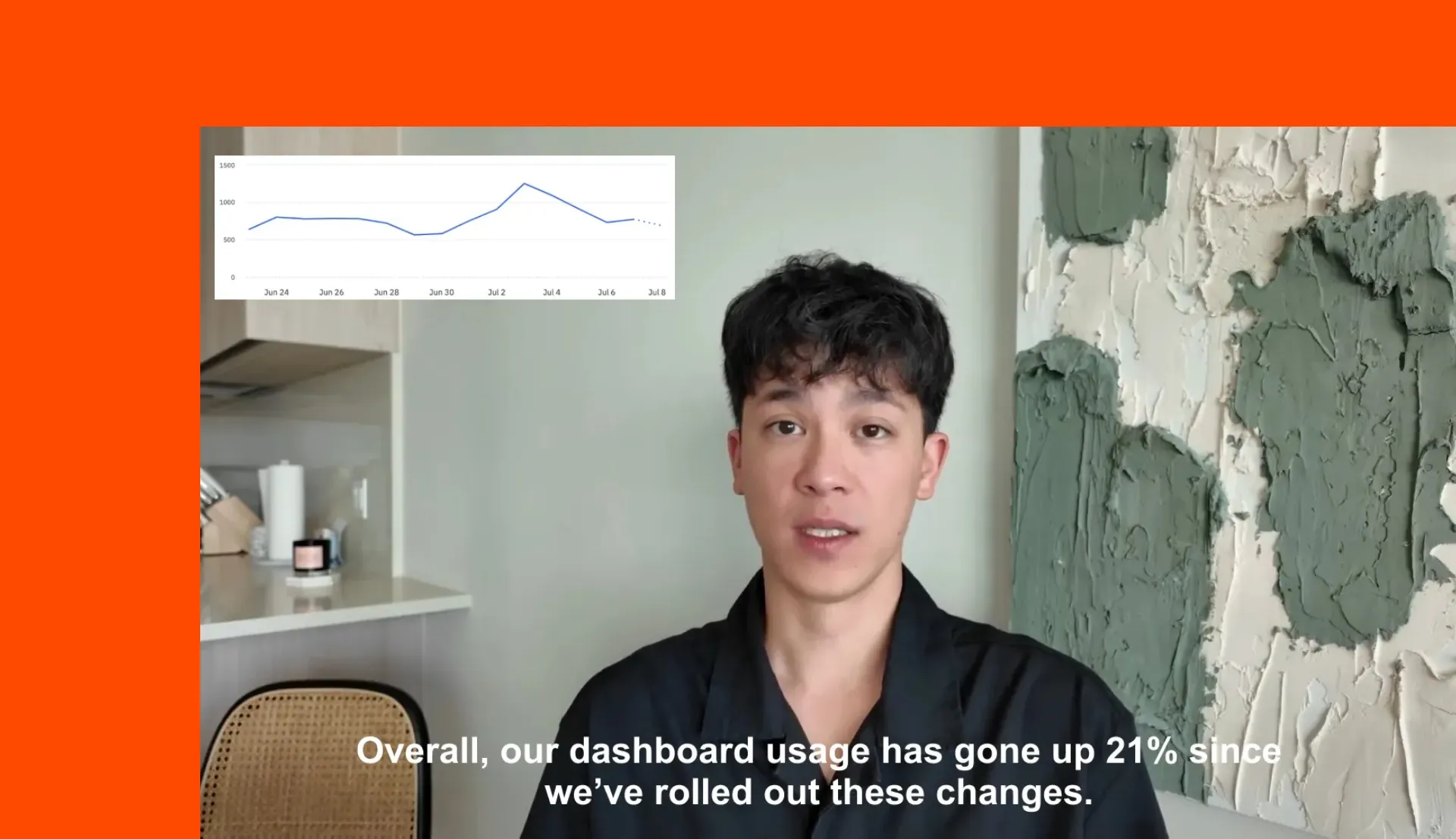
Entrepreneurs
Convert pitch deck recordings to MP4 for email attachments, Loom embeds, or investor portal uploads
Already transforming video creation across industries
Hear directly from the teams who publish faster, collaborate better, and stay ahead.


How to Convert Videos

- Step 1Upload video
Add a video from your device, Google Drive, or paste a URL from YouTube or any online source.
- Step 2Convert
Click 'Export Project' to select your output format. Convert to a GIF, JPEG, MP3, or MP4.
- Step 3Export and share
Hit 'Export' to process the converted video. Download and save your video or share it directly to social media.
Frequently Asked Questions
We have answers to the most common questions that our users ask.
Is Kapwing's online video converter free?
Yes, Kapwing's online video converter is free to use. Jump into the editor and upload any file to get started, with conversions to MP4, MP3, GIF, and more. However, the free version adds a watermark to all exports. To remove the watermark and unlock additional features, you can upgrade to a Pro account, which also allows for larger uploads.
Is there a watermark on exports?
If you are using Kapwing on a Free account, then all exports contain a watermark. Once you upgrade to a Pro account, the watermark is removed from your creations.
How do I convert a video to a GIF?
You can convert videos to GIFs with Kapwing. Simply upload the video (usually an MP4), and Kapwing will transform it into a GIF format. In the process, the sound will be removed, and the frame rate adjusted for smoother GIF playback, creating a silent, looping image that’s perfect for sharing.
Can I convert a YouTube video to an MP3?
There are several instances where you may be able to download and convert a YouTube video legally. Copy the video URL, paste it into Kapwing’s 'Add Media' section, and once it loads, add it to the timeline. Click 'Export Project' and select 'MP3' to download the audio. However, any form of YouTube download violates YouTube's Terms of Service, and could lead to serious repercussions. Read this article if you need more information.
How do you convert a video to slow motion?
Converting a video to slow motion with Kapwing is simple. After uploading your video and adding it to your timeline, click 'Edit' in the right panel. Find the 'Speed' option, then adjust the speed to slow down the video. When you're satisfied, export the video with the new speed settings.
Can you convert a video to audio on an iPhone?
Yes, you can convert videos to audio files using Kapwing on an iPhone. Here’s how:
- Upload the video to Kapwing.
- Add it to your timeline and separate the audio.
- Delete the video layer and export the audio as an MP3 using the 'Export Project' button. Your audio file is now ready for use as a podcast clip or social media soundbite
What is the best and safest video format to use?
MP4 is one of the most widely used and versatile video formats. It is compatible with social media, YouTube, media players, and video editing software. MP4 files can store video, audio, subtitles, and images, making them ideal for most creator needs. While generally safe, like all files, MP4s can be prone to corruption.
Can MP4s have transparent backgrounds?
Yes, Kapwing lets you remove the background from any video, including MP4 files, to make it transparent. Using our AI-powered 'Remove Background' feature, you can achieve this with just a few clicks — no need for manual tracking.
How do I change the format of a video file?
Video converters like Kapwing allow you to change a video’s format, whether to another video type or an image format like JPEG. Converting between formats may alter the file’s frame rate and size, depending on the output format. Kapwing supports conversions to MP4, audio files, and image files, offering flexibility and compatibility.
Can you convert an MP4 to MP3?
Yes, Kapwing allows you to convert MP4 videos into MP3 audio files without needing additional software. Upload your MP4 to Kapwing, select 'MP3' under the 'Export Project' options, and convert your video into audio, ideal for podcasts, social media clips, or streaming.
What file formats does Kapwing support?
Kapwing's video editor works with all popular file types for video, image and audio including MP4, AVI, MOV, WebM, MPEG, FLV, WMV, MKV, JPG, PNG, WebP
What is the maximum file size for conversion?
Kapwing’s maximum upload file size is 6GB for paid Pro plans and 250MB for the Free plan. The platform supports various formats (MP4, MOV, etc.) and allows exports up to 120 minutes for Pro users, while Free users are limited to 1-minute exports with watermarks.
How long does it take to convert a video?
Conversion time depends on file size and format, but most videos under 500MB convert in under a minute.
Discover Resources
Tips, templates, and deep dives to help you create faster and share with confidence.
View all


Get started with your first video in just a few clicks. Join over 35 million creators who trust Kapwing to create more content in less time.