Convert Image to Video
Turn photos into layered video projects online.
Add motion, text, and sound for free.
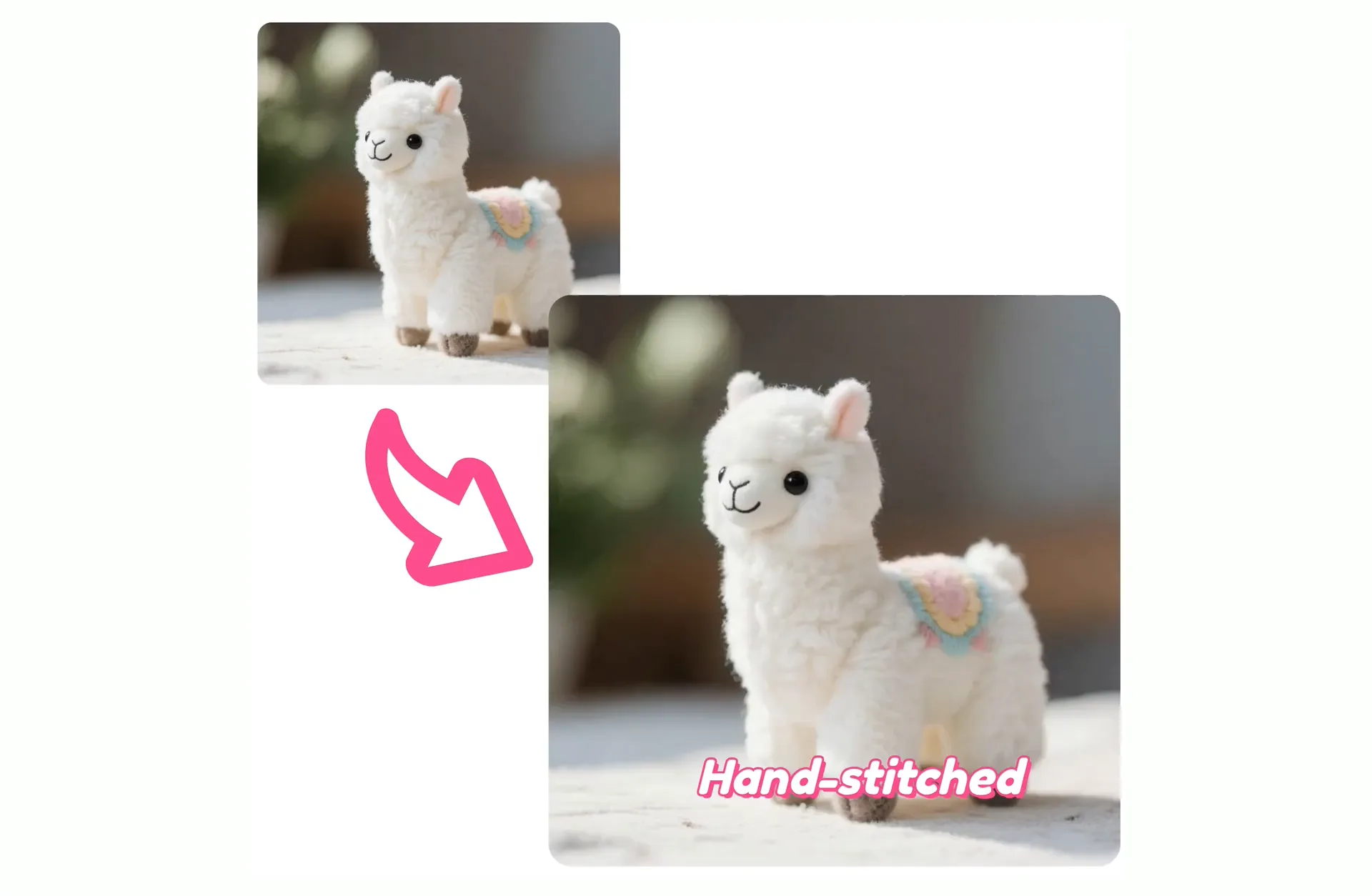
Turn images into videos in seconds
Create video timeline projects from any photo online
Convert images into editable videos
Upload a photo and turn it into a video project you can build on. Add music, text, voiceovers, other images and video clips, adjust the timing, and arrange everything on an editable timeline.
You can also tell Kai what you want to make. Upload an image and ask Kapwing's AI assistant to turn it into a video with a generated song, add other media, or make edits to the project. Keep refining with follow-up prompts or switch to the Studio for hands-on editing.
Want to animate the image itself? Use Kapwing's AI Image to Video Generator to generate movement from your photo. When you're finished, edit and export your video as an MP4 or MOV in up to 4K.
How to turn images to videos online
Convert JPG or PNG to MP4 or MOV in seconds
Upload
an image to a chat with Kapwing AI or directly to the Studio


Convert
to video and add music, text, and voiceover by prompting Kai or clicking "Magic Animate" in the Studio
Export
as MP4, MOV, or WebM in up to 4K resolution
Convert photos to video projects for free
Turn static images into dynamic videos with studio and AI tools
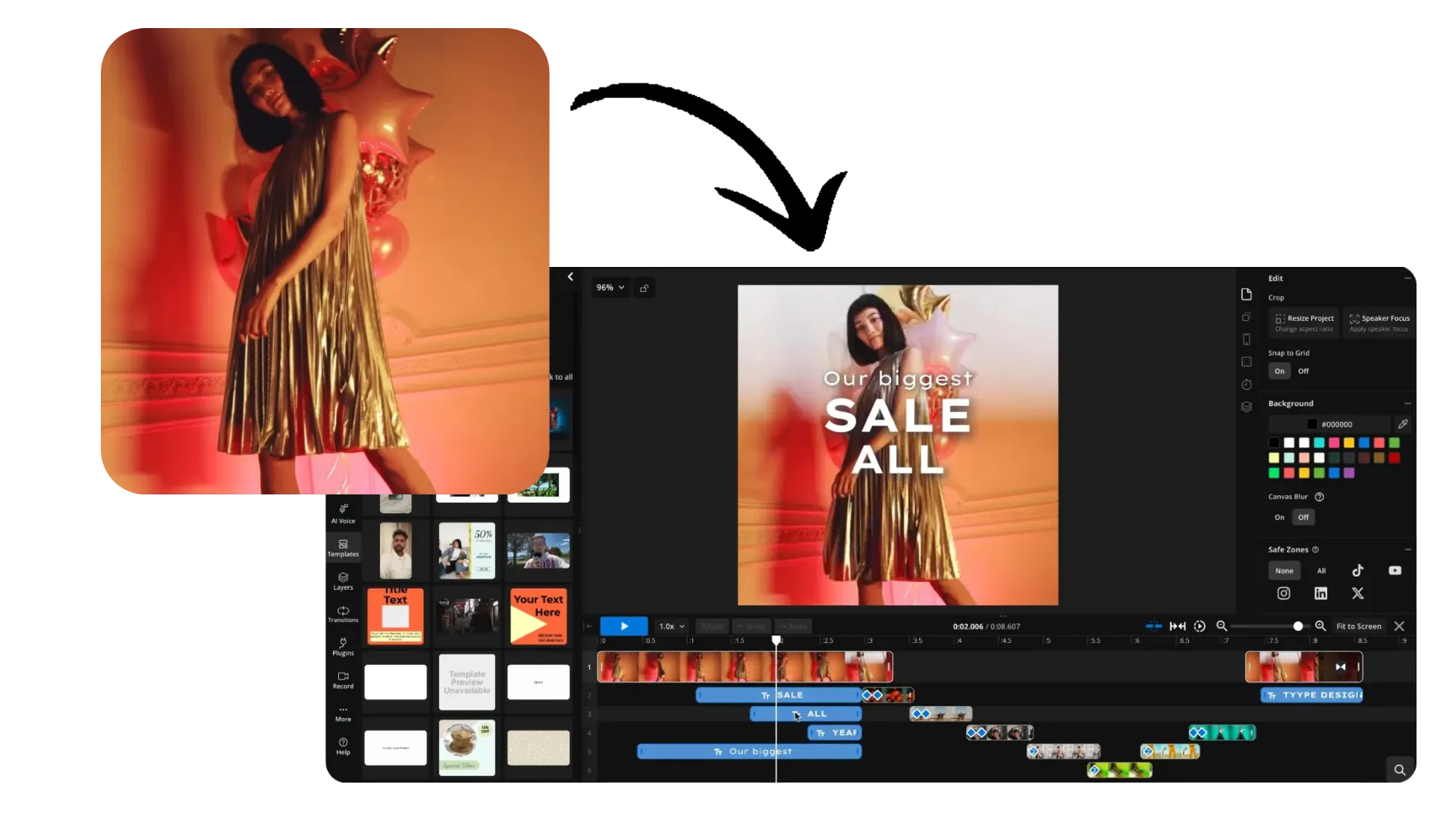
Build a complete video around any image
Start with a single image and build out a complete video project. Add video clips and B-roll, browse stock media, or generate new visuals, then arrange everything alongside your original image on the timeline. Kapwing’s online converter also supports other media conversion workflows when you need to change file types or formats.
Arrange everything on the timeline alongside your original image, then trim clips, adjust timing, add transitions, resize scenes, and layer text or graphics. Turn one photo into a video montage and keep building until you have a video ready to publish.
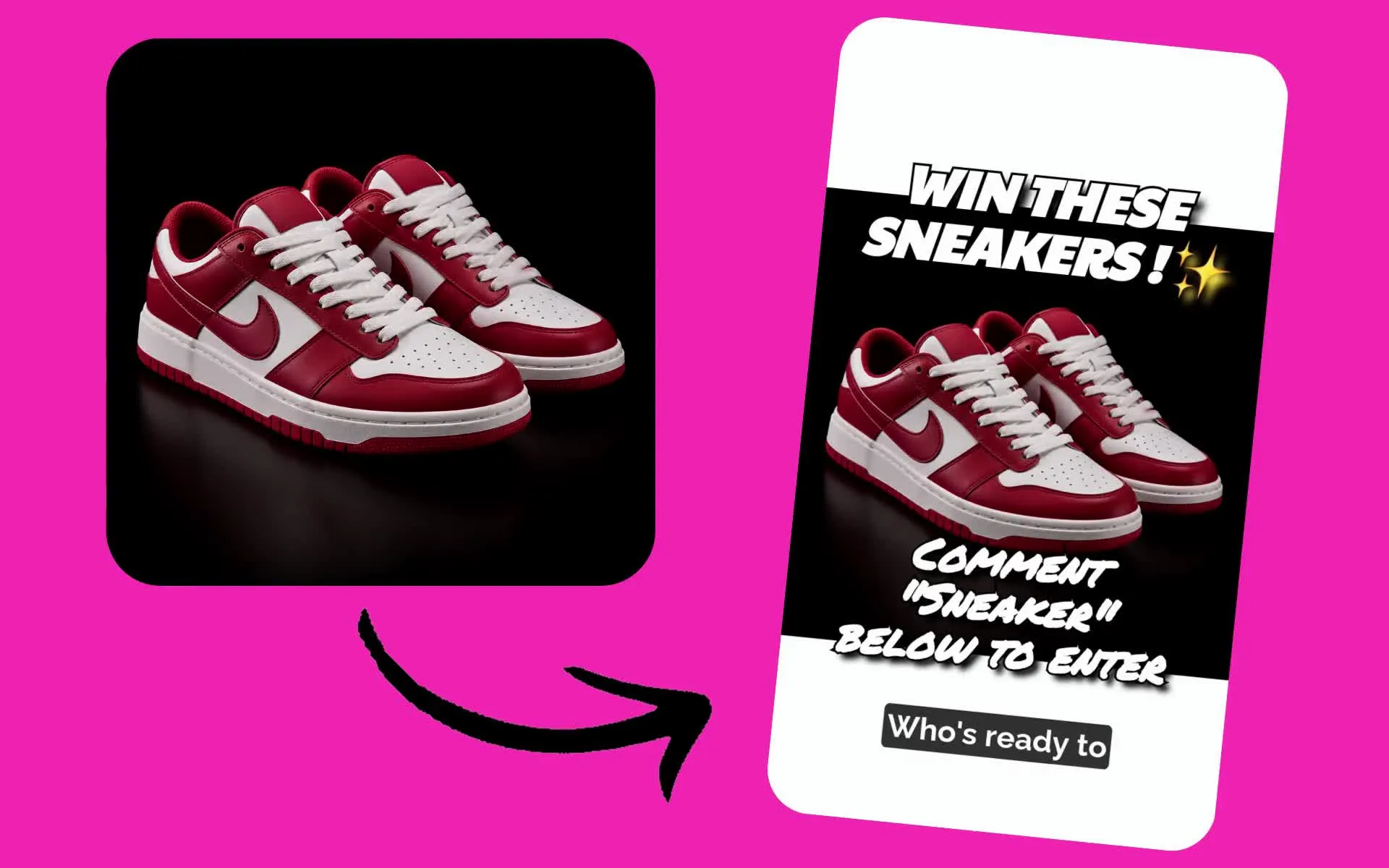
Add music, voiceovers, and sound
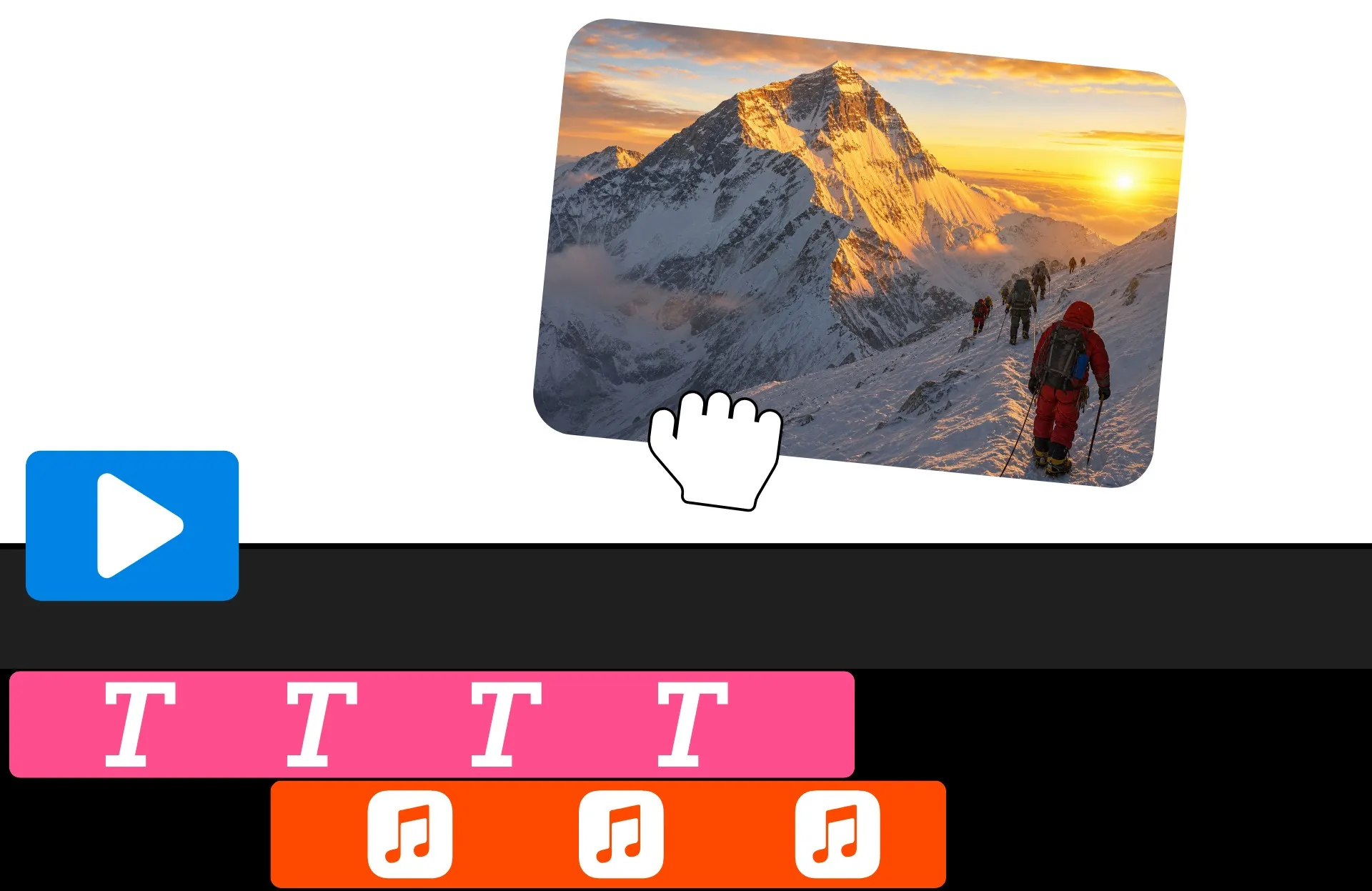
Give your video a soundtrack with stock music, sound effects, recorded audio, or AI-generated audio. Generate a custom song or sound effect for your project, then adjust its timing and volume alongside your visuals.
You can also add narration with an AI Voice Generator, record your own voiceover, or use Text to Speech to turn a script into spoken audio. Everything stays editable with the rest of your project, so you can sync audio to images, clips, and transitions.
AI animation and editing in one studio
Kapwing’s all-in-one editing studio includes an AI Image to Video model that turns static photos into short video clips with motion.
You can also ask Kai to zoom, pan, crop, animate, or add transitions to your photo. Then use drag-and-drop tools or manual edits like trimming, cutting, and layering to refine your video.
Create anything from a few seconds of social content to a full-length presentation, combining AI-powered edits and video generation with hands-on control to keep your video on brand.
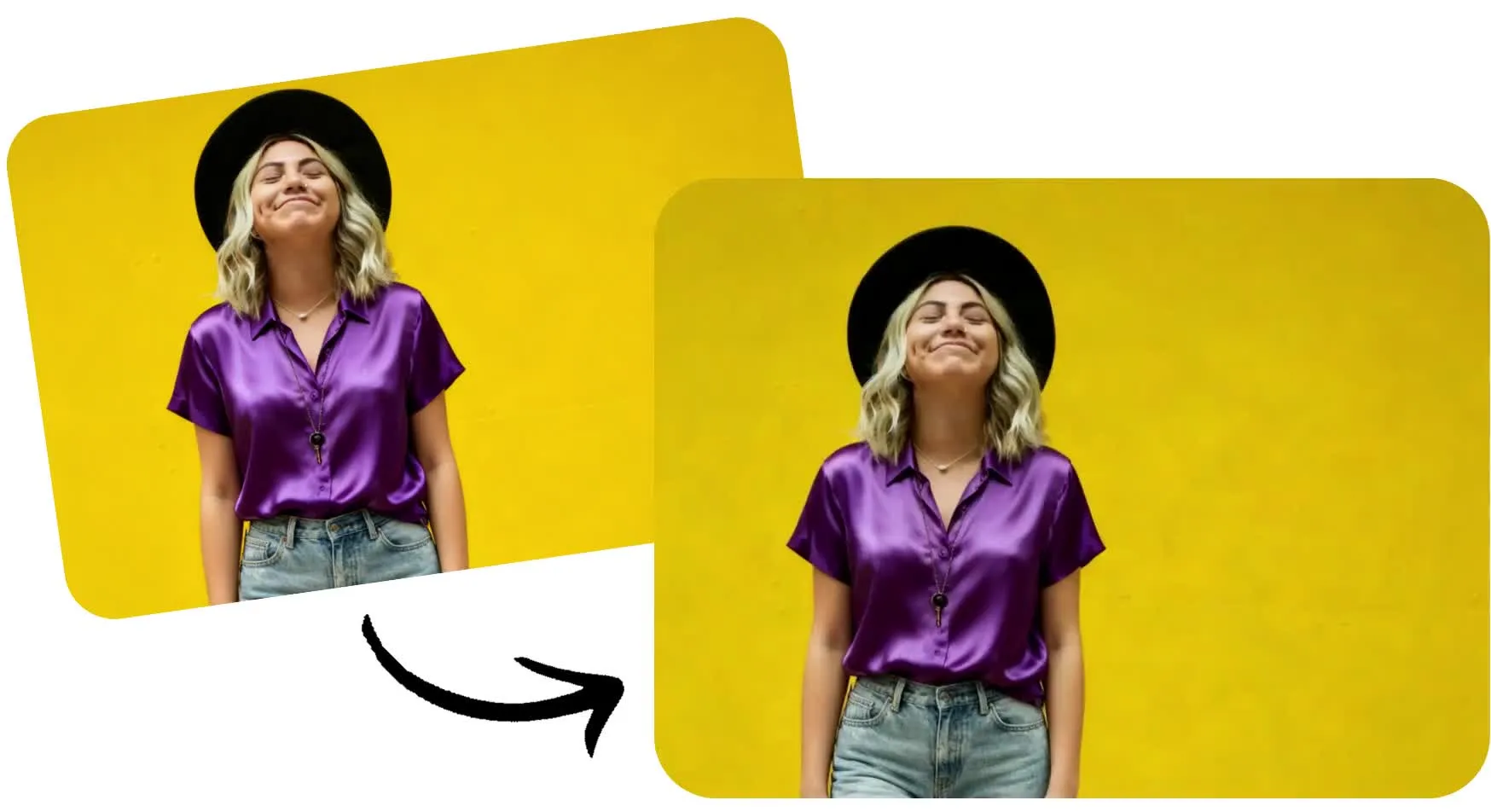
Reach anyone, anywhere — instantly with video
Whether connecting with customers, coworkers, or an entire community, video makes your message impossible to ignore
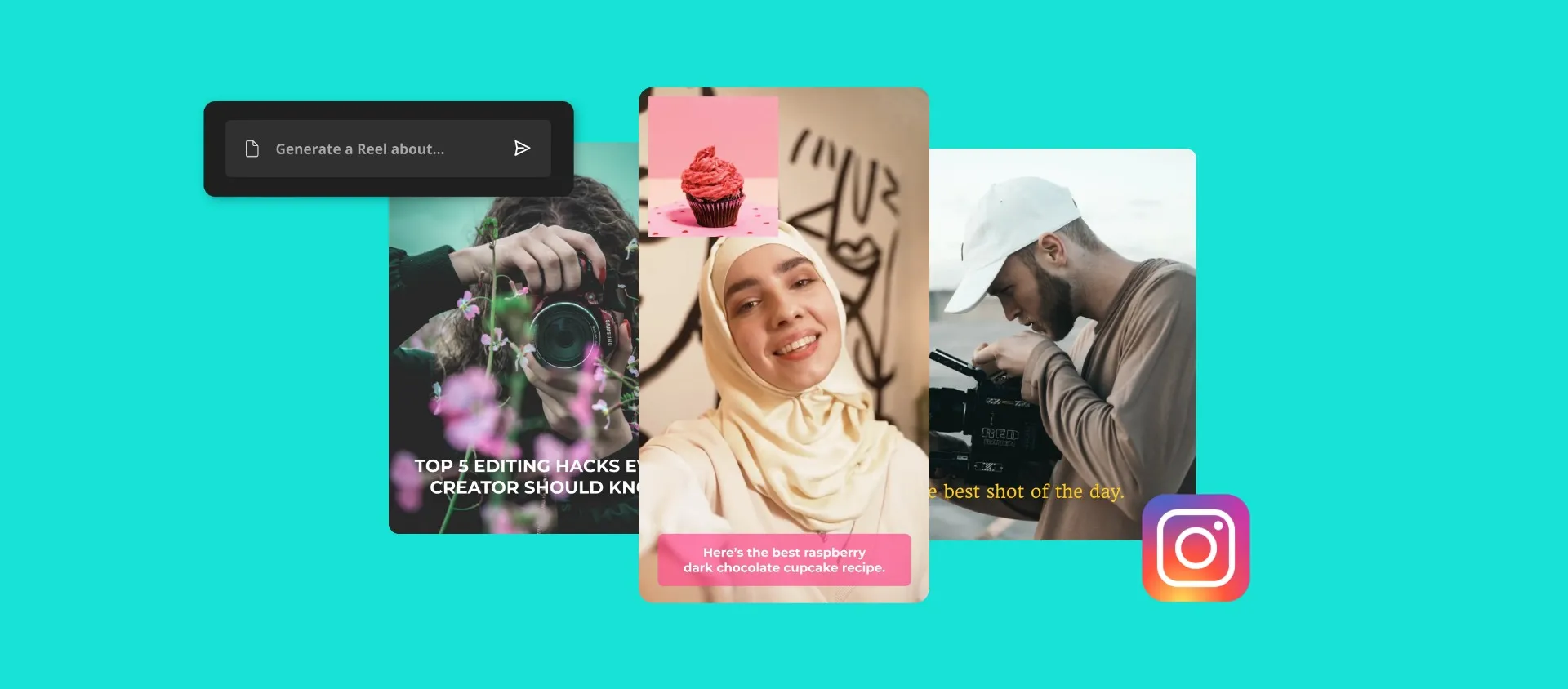
Social Media Creators
Boost engagement by turning images into short-form videos with text, music, and graphics that help your posts stand out in busy feeds

Small Business Owners
Promote your products or services by converting product photos into polished marketing videos using Kapwing’s Image to Video Maker

Marketers
Give static image adverts new meaning by transforming them into high-impact video promos with on-brand visuals, animations, and audio

Coaches & Consultants
Turn testimonials, session snapshots, or visual frameworks into video content that builds trust, attracts leads, and showcases your impact

Realtors
Show properties in a new light by turning listing photos into walkthrough-style videos with voice over, logos, and smooth transitions

Business Presentations
Convert graphs, product shots, or team photos into professional slideshows for pitch decks, reports, or internal updates

Teachers
Turn lesson images or diagrams into simple explainer videos so students can revisit material without clicking through multiple slides
.webp)
Designers
Graphic designers and creative directors present drafts, concepts, or mockups as short video reels that add motion and context to your ideas

Photographers
Showcase work in slideshow videos, or protect your photos with subtle motion watermarks using the Image to Video Converter

Event Promos
Create recap videos or unique event invitations by transforming static images into polished, motion-rich clips that capture attention

Family & Friends
Turn fun photos into personalized slideshows with music using Kapwing’s free Image to Video Generator — add as many photos as you want!
Build multi-media video projects in a shared timeline
Designed for teams and brand collabs. Share and edit simultaneously.
Fast. Online. Collaborative.
Kapwing’s cloud-based studio is powered by AI features built for speed and simplicity. Auto-prompt enhancement and the AI Assistant help guide you through your workflow, while one-click tools handle tedious edits like background removal, color correction, and photo enhancement, all in seconds.
Because we're browser-based, teams can collaborate in real time from anywhere. Feedback, reviews, and approvals happen directly in the studio, keeping projects organized and eliminating endless back-and-forth across Slack, Teams, or email.
When finalized, publish your video straight to social media or export to any device — fast, seamless, and share-ready.

Already transforming video creation across industries
Hear directly from the teams who publish faster, collaborate better, and stay ahead.


How to Turn a Picture Into a Video
- Step 1Upload image
Upload your photo to a new chat with Kai or a new project in the Studio
- Step 2Convert to video
Transform your image into a video by prompting Kai to animate it — or click "Magic Animate" in the right sidebar, then manually add text, music, voiceover, and transitions in the Studio.
- Step 3Export and share
Edit with additional prompts or manual tools, then share directly to social media or export to any mobile or desktop device.
What's different about Kapwing?



Frequently Asked Questions
We have answers to the most common questions that our users ask.
Is Kapwing's Image to Video Converter free?
Yes, Kapwing's Image to Video Converter is free to try for all users without a watermark. For access to all tools, animations, and stock media, upgrade to a pro account and unlock the full power of the studio.
How many images do I need to create a video slideshow?
You can start a video slideshow with as few as two images. There’s no limit, so you can upload as many photos as you’d like to build the slideshow that works best for your project.
How to add audio to an image
Add audio by uploading a music file or recording directly in the editor. Once added, your image or slideshow automatically converts into a video, which you can export as-is or enhance with text, motion, and other elements.
Can I convert a single photo into a video?
Yes, you can upload one image and turn it into a video by adding background music, text, and motion effects.
What video formats can I export in?
Upload images in JPG, PNG, WebP, any other formats. Export your converted photo to video as an MP4, MOV, WebM, or GIF file.
How do I add text or captions to my video?
Access preset text styles from the "Text" menu before customizing to your liking using the editing tools to refine the font, color, outline, and more. Alternatively, you can simply ask AI to add text to your video.
What’s the best length for an image to video slideshow?
The ideal length depends on where you plan to share it. For social media, videos between 15 and 60 seconds typically perform best. For personal or professional projects, focus on pacing that feels natural for your content rather than a set duration.
Can I turn a photo into a video with AI?
Yes, you can upload a photo to Kai and ask Kapwing’s AI video assistant to build a video project around it with elements like voiceovers, subtitles, text, music, and B-roll. To generate motion within the photo itself, use Kapwing’s AI Image to Video Generator, then continue editing the generated video in Kapwing.
Can I turn multiple images into one video?
Yes, upload multiple images to Kapwing and arrange them on a timeline to create a single video. Adjust how long each image appears, add transitions, music, text, and video clips, then export everything as one video. For projects built around a sequence of photos and clips, use Kapwing’s Montage Maker.
Discover Resources
Tips, templates, and deep dives to help you create faster and share with confidence.
View all


Get started with your first video in just a few clicks. Join over 35 million creators who trust Kapwing to create more content in less time.